
Find your fit
Who it is for
It can fit an individual who wants a lightweight system for recurring chores and deadlines, or a small group that shares a list and assigns tasks. The shared-list model is useful for coordination, but buyers needing complex project dependencies or formal approvals should test those needs directly.
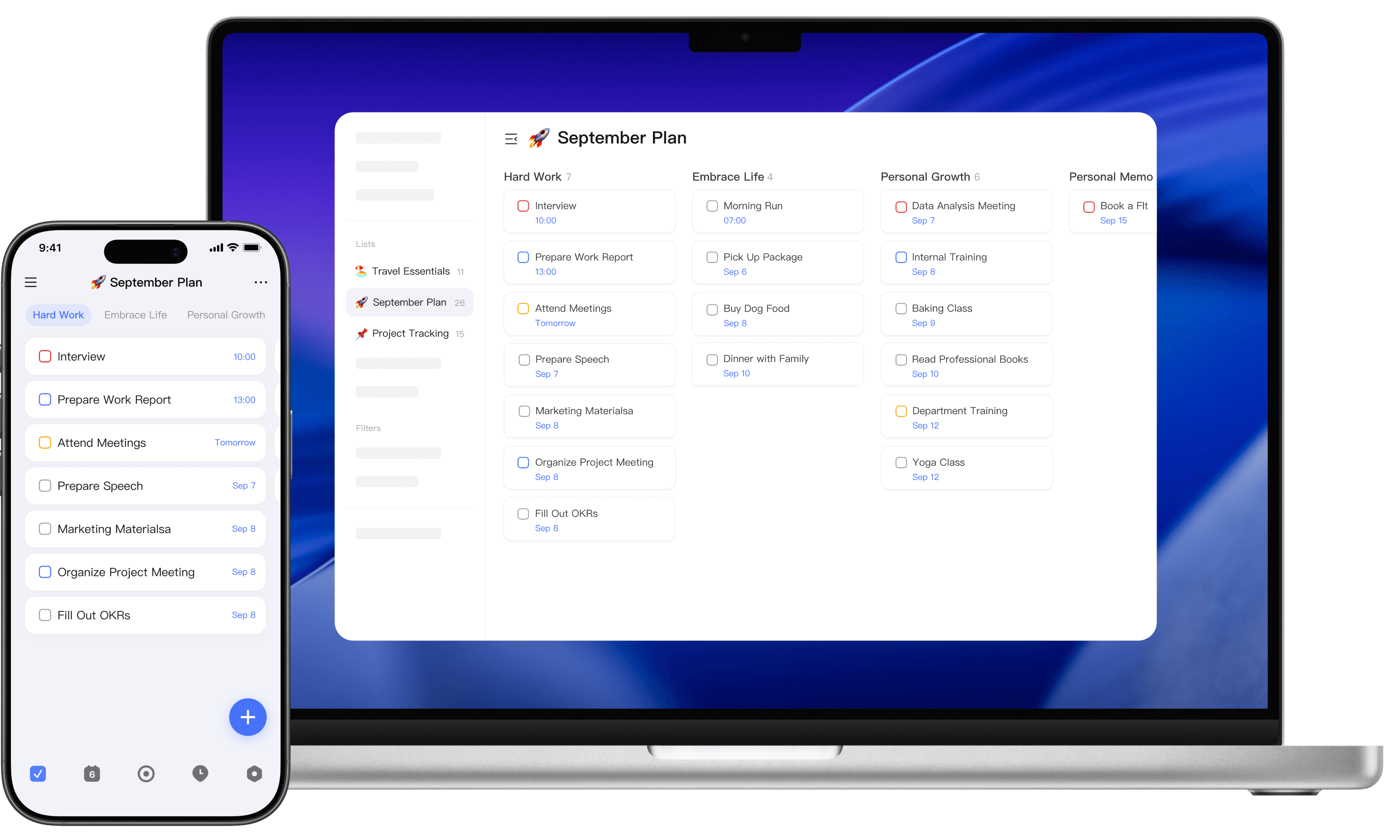
Start with separate lists for a few real areas of work rather than putting everything in one inbox. TickTick provides regular lists and smart views such as Today, Tomorrow, Next 7 Days and Assigned to Me, which can surface tasks across those lists.
The work it supports
Core capabilities
Set repeating tasks for work that recurs weekly, monthly or on a custom schedule. Add reminders with enough lead time to act, then test notifications on the device and account actually used; some alert options are platform-specific.
Calendar views put scheduled tasks alongside a time layout. TickTick also supports subscriptions for outside calendars including Google, iCloud and Outlook. Check the direction and timing of each calendar connection before treating it as a single source of truth.
A shared list lets members see a common set of tasks and assign responsibility. Try a small shared project first, including invitation, comments and reassignment, so everyone understands which updates appear to other members.
Tags and filters help narrow a large task list to what matters now. The built-in smart lists are a starting point for finding tasks by date or assignment.
The habit tracker records repeated routines and statistics, while the Pomodoro timer organizes focus sessions. These are optional planning aids; test whether they improve a real routine before moving a team's reporting into them.
TickTick works across platforms and advertises cross-platform sync. Users should verify an important task, reminder and shared-list change on the web and their devices before depending on synchronized state during travel or offline work.
Understand the offer
Pricing and getting started
The current plan page lists Free at US$0 with nine lists and 99 tasks per list. Premium is listed at US$49.99 per year with 299 lists, 999 tasks per list, broader calendar views and higher limits for reminders, attachments and habits.
The plan matrix also distinguishes features such as task duration, constant reminders, filter capacity and integrations. Availability may vary by platform or purchase channel; verify the exact feature and renewal price in the account before upgrading.
TickTick says tasks remain after Premium expires, while Premium-only features become unavailable. Check how existing premium settings behave after a downgrade before building an essential workflow around them.
Look a little closer
Before you choose
Put a real week of tasks into the free plan: one recurring deadline, a shared list, a calendar subscription and several reminders. Check notification timing, task ownership and the limits that actually interrupt your routine before deciding whether Premium is useful.
The vendor says task data is encrypted at rest and hosted in US AWS facilities, and its privacy policy describes account-data retention after deletion. If a team will put sensitive customer or company information into task descriptions, review its sharing permissions, data policy and manual backup/export options before rollout.
Before connecting Google Calendar, choose the TickTick route that matches the records you intend to sync. Subscribe from Google Calendar displays Google events in TickTick; Integration with Google Calendar displays selected dated TickTick tasks as Google events and can bring calendar events into TickTick as tasks. TickTick says changes, including deletions, can sync in both directions, while disconnecting an integration leaves previously synchronized copies in place. Try a harmless event and task, check where each appears and what a change does, and plan any cleanup before using a live calendar.
Test two recurring tasks before relying on reminders for a fixed deadline or an interval after completion. TickTick's custom repeat can use due dates or completion dates; the latter shifts the next reminder when the prior task is finished late. It also offers Skip the recurrence for an uncompleted cycle, and its FAQ says future recurring tasks cannot be modified until the current recurrence is handled. Compare a harmless late completion and a skipped cycle on the devices you use, then check the next reminder.
For tasks that must make sense across time zones, enable TickTick’s Time Zone setting and choose the task’s time mode deliberately. Fixed Time Zone anchors the time to a selected zone, so its displayed local time changes when you travel; Floating Time keeps the same local clock time wherever you are. Test a harmless meeting deadline and a daily routine on the devices you use, then check the resulting reminders after changing zones.
Before a team relies on a TickTick shared list, review member permissions separately from each person's list-reminder settings. The collaboration guide offers edit, comment and read-only access; reminders can cover all tasks, exclude tasks assigned to others, include only tasks assigned to you, or be turned off. Sharing a Premium owner's list does not give non-Premium members Premium features, so check the sharing allowance and each person's required tools. Use a harmless two-member list to verify who can change a task and which reminders appear on each intended device; task assignment alone does not prove that an alert arrives.
Use TickTick Suggested Tasks as a triage view for unfinished one-off work, not as a complete task inventory. Its Help article groups suggestions by recently added, repeatedly postponed, long-pending and upcoming tasks; the Long Overdue group includes tasks created more than 7, 14 or 30 days ago. TickTick excludes recurring tasks, tasks already scheduled for Today and completed tasks from this view. Compare a harmless long-pending one-off task, a recurring task and an already scheduled task before relying on the view to find work that needs attention.
If you plan to turn task details into reference notes, check TickTick's task-to-note behavior first. Tasks can be checked off; notes have no completion state. TickTick's Help describes Convert to Note on mobile and desktop, but the converted note stays in its original list rather than moving automatically to a Note List, and a task with subtasks cannot be converted. Use a harmless sample task to verify the workflow and decide where long-lived notes should live.
Check TickTick's Timeline View from a regular list before relying on it for planning. Its Help says built-in Smart Lists such as Today, Tomorrow and Next 7 Days currently do not support that view. Only dated tasks appear on the timeline; undated tasks stay in Arrange Tasks until given a date and time. Compare a harmless dated and undated task in an eligible list so the team understands what the timeline omits.
If important tasks need repeat prompts, compare a standard TickTick reminder with Constant Reminder on the mobile device you actually use. TickTick says to set a task reminder time before switching Constant Reminder on for that task; it describes the persistent prompts as continuing until you act. Its FAQ calls the feature mobile-only. On iOS 26 or later, the app offers system Alarm and notification delivery; Alarm needs system permission, and TickTick says it falls back to notification reminders without that permission. Use a disposable task to check the normal alert, Constant Reminder, snooze and completion on your own phone. Confirm your plan, app version, mobile OS and notification/alarm permissions before relying on it for a deadline; those settings alone cannot prove an alert will arrive.
Before clearing an old TickTick habit, choose Archive or Delete based on whether its check-in history matters. TickTick says Delete permanently removes the habit and all check-in records without an undo; Archive hides the habit from the main view and lets you restore it from Archived. On mobile, its Help describes opening the archived habit and choosing Restore; on desktop, right-click it and choose Pick up habit. Review these options on a harmless sample habit before changing a real routine. If you need the records, keep the habit archived while you decide whether permanent removal is appropriate.
19 distinct sources behind this profile. Research observed Oct 27, 2026. Features and offers can change.
View sources and research →
