Find your fit
Who it is for
Operations and support teams can document common tool procedures once, then keep them in a team library or knowledge base. Free is enough to test browser capture and a small shared set; Pro is relevant when the team needs more guides, desktop capture, blurring or file export. Enterprise rights matter for larger rollout and governance needs.
Tango is especially helpful when the recipient should follow a process inside the application rather than watch a long recording. Guide Me has specific access, browser and guest-session conditions, so check the actual viewer journey before rolling it out to an audience that has no workspace membership.
The work it supports
Core capabilities
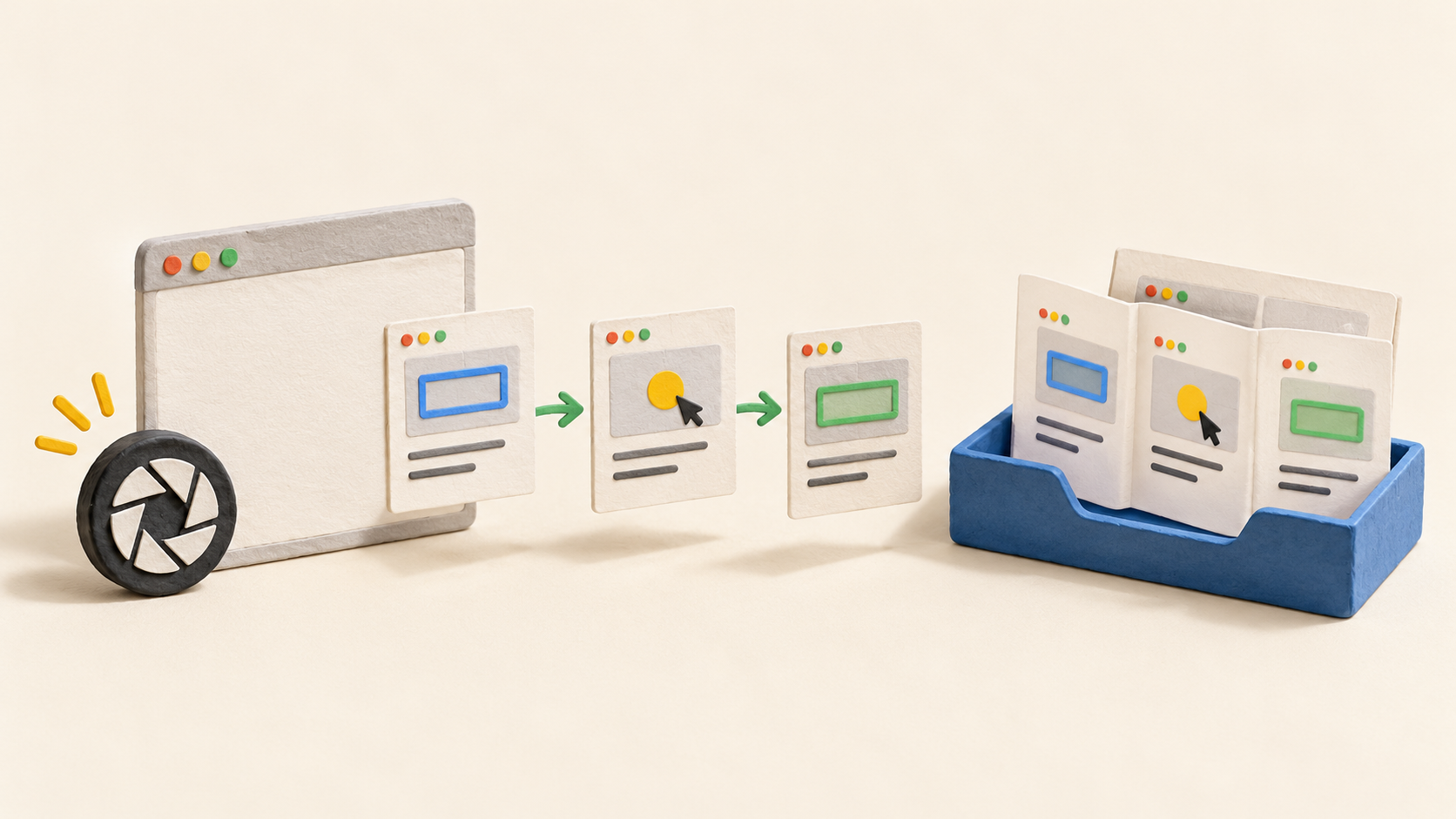
A browser author starts the Chrome or Edge extension and works through the process. Tango collects a sequence of screenshots and generated descriptions rather than a continuous video. Capture can be paused, restarted, completed or discarded, allowing a clean attempt before the guide is shared.
The resulting steps are editable: title, step names, descriptions, captured images and alt text can be changed. Screenshots can receive arrows and other annotations. An author should check generated wording and remove incidental screens before treating the guide as finished documentation.
New guides begin in Drafts. Moving one to the Team Library allows sharing by link or invitation, embedding in a knowledge base, and copying HTML. An embedded guide can update with the source guide, whereas a copied or exported version freezes its current content. Decide which route fits the team's change-control process.
In a Free workspace, moving a guide to the Team Library makes it viewable by anyone with the link. The link is not search-indexed, but anyone who receives it can open the guide without an account. Restrict a sensitive guide to invited signed-in people and remember that an exported file or embed still exposes its content to anyone who can reach that destination.
Guide Me gives a viewer a step-by-step walkthrough on a supported browser-captured workflow. Help says members and guests can access it on any plan when they have guide permission, a recent Chrome or Edge extension and an eligible guide. A guest gets only three trials per workspace; desktop captures and mobile do not support the experience.
Pro and Enterprise add a desktop app for Mac or Windows software and for processes that cross browser and desktop tools. The desktop result can still be edited and shared, but Guide Me, Live Blur, voice transcription and AI Agent automation do not run on desktop-captured workflows. Chrome and Edge remain the supported browser extension environments.
For browser guides that may show confidential information, paid plans provide Live Blur before capture and editor blurring afterward. Enterprise Secure Blur can detect selected sensitive fields across a workspace, but it is not retroactive. A saved blur cannot be undone, so use a fictional account during trial and verify the screenshot before publishing a guide.
Viewer analytics help authors see how a guide is used; Free has a limited view and Enterprise adds workspace-level Insights. Use that as a signal to inspect confusing steps, while verifying any real training outcome with the people and process involved.
Understand the offer
Pricing and getting started
The Free plan lists up to ten users per workspace, five shared workflows, browser capture and link or embed sharing. This is a shared-library limit, not a promise of unlimited published guides. The workspace uses one common plan for its members.
Pro adds unlimited workflows, desktop capture, blur and PDF/Markdown/HTML export, plus 14-day version history. Current official Help displays $22 per user per month billed annually or $30 monthly for one or two users, and $15 annually or $20 monthly per user for three or more. Each added Pro user requires a paid seat; confirm the actual workspace size and checkout total.
Enterprise is custom-priced and lists governance and rollout tools including SSO/SCIM, Secure Blur, audit logs, branching and longer version history. AI automation is specified for select Enterprise plans only. Ask which guide, permission and automation rights appear in the written offer rather than assuming every advertised Enterprise tool is included.
Guide Me is not simply an Enterprise-only playback switch: Help describes access across plans for eligible browser guides. It also caps Guest trials at three per workspace before a membership prompt. Budget for the intended audience and verify whether viewers will be members, invited guests or public-link recipients.
Look a little closer
Before you choose
For a safe pilot, document a fictional browser process, inspect every screenshot and generated description, then share it with one intended viewer. Test the exact link permission and embed destination, because Free Team Library links can be opened by anyone holding the URL even though search engines do not list them.
If the workflow includes employee or customer data, decide whether blurring must occur before capture. Live Blur is on paid plans and Secure Blur is Enterprise-only; post-capture blur is permanent after saving. Avoid real secrets in a test guide and check all steps before moving it from Drafts to the Team Library.
Before buying desktop seats or launching guided playback, verify the target browser and application. The extension supports Chrome and Edge, the desktop app runs on Mac and Windows, and Guide Me cannot follow desktop captures or mobile viewers. A cross-app pilot and a member-versus-guest viewer test will expose these boundaries early.
10 distinct sources behind this profile. Research observed Oct 26, 2026. Features and offers can change.
View sources and research →
