

Find your fit
Who it is for
The product is presented for coding, creative work, study and running a business.
The work it supports
Core capabilities
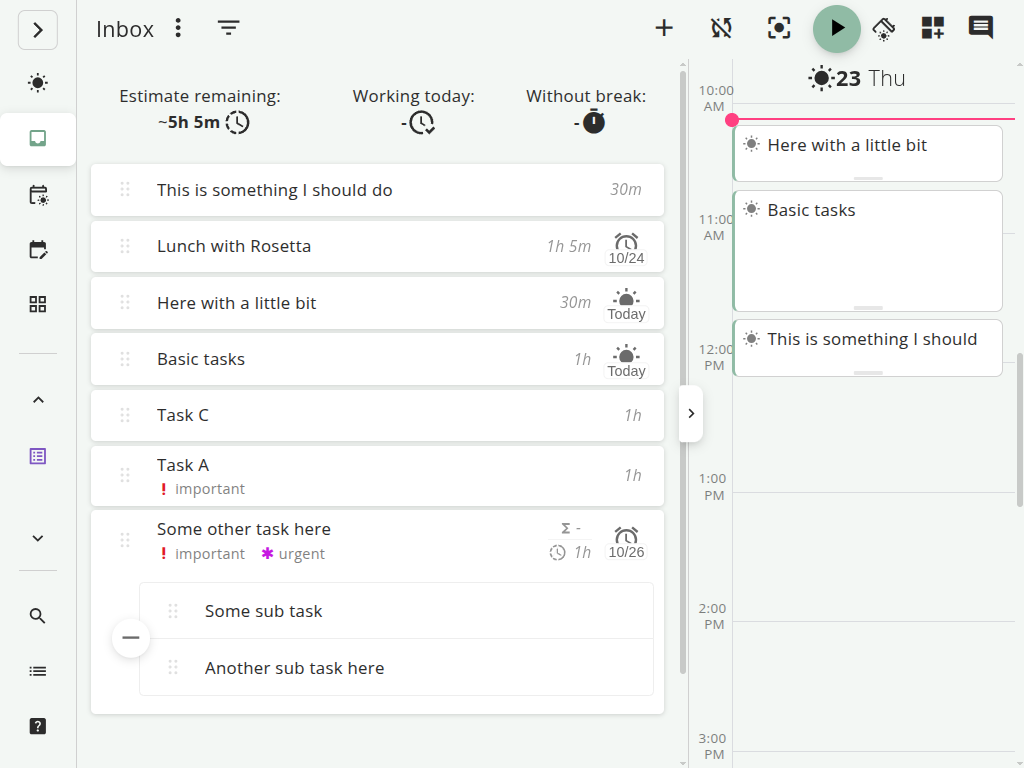
Super Productivity supports task creation with time estimates.
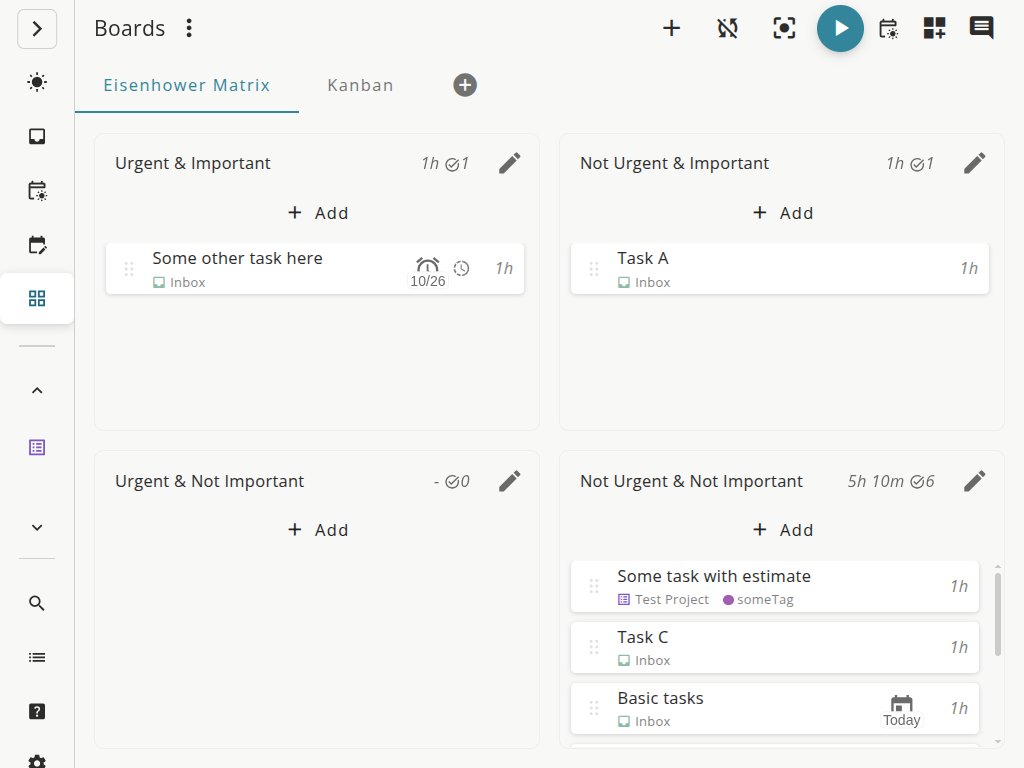
Super Productivity includes an Eisenhower Matrix board preset.
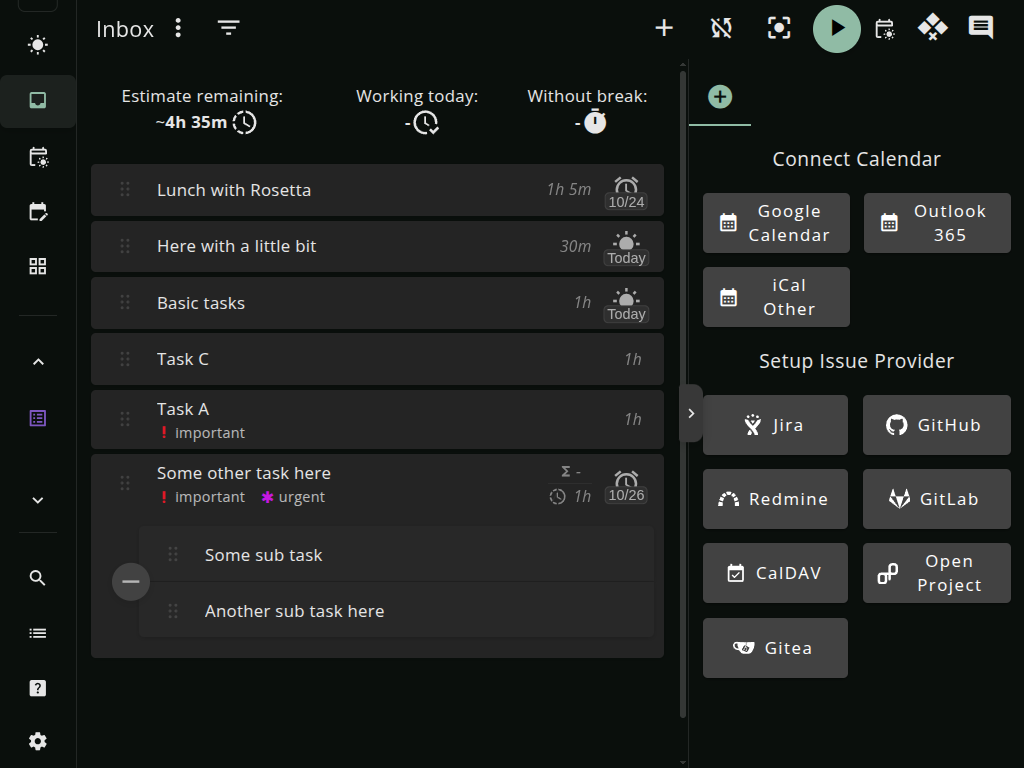
Connect Google Calendar in a native app to display selected calendars and create events for scheduled task blocks when automatic time blocking is enabled.
For a daily work cycle, start a timer from a task or connected issue, then use the Worklog to compare time spent with estimates. The handbook describes CSV exports for invoicing or personal analysis; use those as reporting files, not as a full recoverable task backup.
Understand the offer
Pricing and getting started
The app is free and open source without premium app tiers or paid app features. Costs of optional external services are not established by that app-pricing statement.
Look a little closer
Before you choose
Tasks, projects and tracking data are stored on the device by default. Enabling sync or an integration can transfer data to the selected external service.
Google Calendar authorization is separate on each native device and unavailable in the browser app. Writing task blocks requires a writable calendar and connectivity. Moving a Google event is not promised to reschedule its source task; Google receives event data sent through the connection.
Local storage works differently by platform. The vendor says desktop data lives in the user-data folder with backups stored in SQLite files, while the web app keeps data in that browser's IndexedDB. Clearing browser data can remove tasks, and automatic file backups are unavailable in the browser, so decide how you will keep a recoverable copy.
Optional sync moves task data to the chosen destination: your Dropbox account, your WebDAV server, or Super Sync servers in Germany. An enabled integration can separately send selected data to its service without syncing the whole app. Compare the chosen provider's storage, access and possible charges independently of the free app.
Treat sync and recovery as separate decisions. The handbook recommends exporting a JSON snapshot, while Super Sync's terms describe its server backups as best effort and call for regular local copies. For a fictional project, ask where an export would be kept and how it could be restored before relying on a second device; no real data needs to be moved.
Super Sync's end-to-end encryption is optional and off by default. Its terms say the key is managed locally and the provider cannot recover encrypted data if that key is lost. Transport TLS is a separate protection; verify the selected backend, encryption setting and key-safekeeping plan rather than assuming every sync or integration is end-to-end encrypted.
If you expect Super Productivity timers to populate Jira timesheets, confirm the worklog handoff. Its Jira guide says tracked time stays local until the linked task, or a local subtask for its parent issue, opens a review under default settings and you select Save Worklog; submission requires a connection. For an interim entry while the task stays open, use Jira's native Log work. Walk through fictional tasks and time entries to check the duration, start date and comment before any real worklog is submitted.
If you connect Super Productivity to an issue tracker, check a failed remote update separately from device-to-device sync. Its integrations guide says local planning and time tracking work offline, while fetching issues or sending status updates and worklogs requires a connection. It cautions that a failed issue update should not be assumed to retry automatically: reconnect and check the issue tracker before relying on the update. In a vendor demo using fictional tasks and issues, compare the local task with the remote issue after a disconnect and reconnect, and ask how to recover if the update did not arrive. Do not treat successful device sync as proof that the issue tracker changed.
11 distinct sources behind this profile. Research observed Oct 26, 2026. Features and offers can change.
View sources and research →
