

Find your fit
Who it is for
Sortly is a fit to evaluate when staff need to track physical inventory, including items used in the field. Confirm the number of people and item types the chosen plan must support.
The Free plan is a starting point for a small inventory. Its current published limits include 100 unique items, one user licence and two active jobs.
The work it supports
Core capabilities
Track and manage inventory in the Sortly app. Set up records for the materials, equipment and products a team needs to monitor.
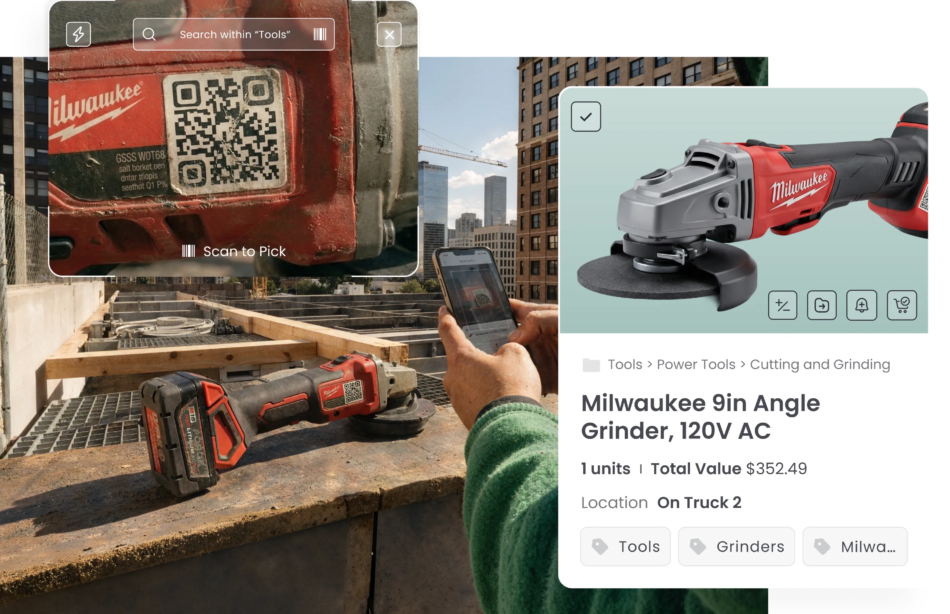
Scan barcodes or QR codes with a smartphone or tablet to find and update items. Test labels and scan results with the devices your team uses.
Set quantity alerts to flag items that may need replenishment. Sortly says alerts are available on Advanced, Premium, Ultra and Enterprise; the Free plan does not support them. Check delivery on the selected tier before relying on it.
Understand the offer
Pricing and getting started
Sortly lists a Free plan at $0 USD per month. It currently shows 100 unique items, one user licence and two active jobs; quantities of a unique item do not increase the unique-item count.
Paid plans have separate allowances and a 14-day trial with promotional exceptions. Check the current pricing page and cancellation terms before starting a paid trial.
Look a little closer
Before you choose
Count the distinct item records you expect to track, since the Free-plan cap applies to unique items rather than the quantity held for each item.
Feature availability and limits depend on the chosen plan. Free does not include quantity alerts. Verify barcode scanning, user access and any offline workflow on the selected plan before adopting it.
Sortly describes item photos and cloud syncing across devices. Verify photo limits, user permissions and how updates sync on the chosen plan and devices before relying on them.
If item photos are part of the inventory record, test a data exit before relying on a spreadsheet as a backup. Sortly's Inventory Summary CSV/XLSX includes item details and public image URLs, not the image files; a PDF embeds visible photos, while the Dropbox export can deliver a CSV and original image files. Export a representative folder and check the fields, files and image access you would need for backup or migration.
Sortly's offline mode is limited to its iOS and Android apps; it is not available in the web app. While sync is disabled, inventory changes stay on that device until they are pushed to the server. Sortly advises a full sync before going offline. For work in low-signal areas, test a representative item update on mobile, reconnect, and verify the result on another device; confirm any plan limits and conflicting-edit behavior with Sortly.
Before deleting Sortly inventory, rehearse recovery with a synthetic item and folder. Sortly says deleted items and folders move to Trash rather than being permanently removed; deleting a folder also moves its contents. Restoration currently runs in the web app, not mobile, and an item returns to its original folder if that folder still exists. Because Trash items cannot be permanently deleted, confirm this retention behavior meets your records and privacy needs before moving real inventory.
For physical inventory checks, ask Sortly to demonstrate a Stock Count with synthetic items and the reviewer roles you expect to use. Stock Counts are available on Ultra, Premium, and Enterprise; an assigned team can count on web or mobile and compare expected with counted quantities. Submitting the count locks entries for review. Only an Owner, Admin, or count Creator can resolve discrepancies or update final quantities, and unresolved differences do not update inventory.
For stock held in two locations, distinguish cloning a Sortly item from moving its quantity. A clone creates an independent item record in another folder, with separate inventory and activity history. Move to Folder transfers a chosen quantity, reduces the source count, adds it at the destination, and records the movement in each item’s History. Try a harmless two-location sample and confirm the quantities and history before applying the workflow to live stock.
If your team uses Bluetooth handheld scanners, check the platform before relying on scan-triggered stock changes. On Sortly’s mobile app, scanner Quick Actions can update quantities or move items; on the web app, a handheld scanner can search and link codes, but cannot run Quick Actions. Sortly lists this workflow for Ultra, Premium and Enterprise. Set the scanner to US Keyboard mode, use a 2D reader for QR codes, and test your device and plan before rollout.
Sortly's all-plan Undo Action can reverse an accidental item move or quantity update, but only for the item's latest action and within seven days. Quantity changes made through workflows such as Pick Lists or Purchase Orders cannot be undone; Team Members and Custom Role users can undo only their own actions. For later or mobile correction, Sortly directs users to Activity History, and the reversal asks for a reason. Test this with synthetic stock before treating Undo as a general rollback path.
For staff who should see only part of the inventory, Sortly's Team Member role can be limited to assigned folders with Edit or View-only rights. On Premium and Enterprise, one Custom Role per account can further control item actions and fields, including whether prices are visible. Map each staff group to a folder and permission set before choosing a plan; if groups need different granular policies, confirm how the single Custom Role limit would affect them.
Sortly label creation depends on the plan: Advanced can create QR labels, Ultra, Premium and Enterprise can also create barcode labels, and Free cannot create labels. For inventory that is not entered yet, you can preprint unlinked QR labels and later connect each one to an item or folder by scanning it in the mobile app. Unlinked barcode labels are unavailable; generate those from an existing item or folder. Before buying label stock, test a small batch with the intended printer and linking workflow.
Before bulk-setting Sortly quantity alerts, group items that should share a threshold and recipients. Sortly's guides warn that bulk edits apply the same recipients and criteria to every selected item, and choosing At or Below Min Level overwrites each selected item's Min Level. Items missing the chosen field are not eligible for the bulk alert, and recipients must already be users in the Sortly account. Quantity alerts require Advanced, Premium, Ultra or Enterprise. Rehearse a harmless item, inspect its threshold and recipient list, and verify notification delivery before applying the same setup to operational stock.
Sortly's Jobs flow moves pulled items into a job folder rather than duplicating stock. When completing a job, return unused items to inventory or another active job, using the suggested return location; Sortly asks for confirmation and then locks the completed job. An Owner or Admin can reopen it to correct details or quantities, but reopening counts against the plan's active-job limit and may prompt an upgrade if that limit is full. Try a disposable job with one used and one unused item, then compare inventory and job history before relying on the workflow for billing or stock reconciliation.
Sortly's Inventory Summary is a live view and cannot be rerun for a prior date. For a month-end inventory record, its Inventory Snapshot subscription emails an automated snapshot and keeps up to 13 months of monthly snapshots in Sortly. Report Subscriptions are listed for Ultra, Premium and Enterprise, so confirm the chosen plan and enable the schedule before relying on historical comparisons. Keep your own approved archive if you need records beyond Sortly's in-app window; a current export alone will not reconstruct an earlier snapshot.
Plan Sortly item variants before migrating an inventory catalog. Its Help guide says variants can be configured only while creating a new item: preexisting items cannot gain variants, and additional variants cannot be added to that item later. A variant set supports up to three attributes; each resulting variant has its own Sortly ID and can have a separate label. Test a harmless item with the size and color combinations, quantities and scan path you need before bulk setup, and confirm the feature on your selected plan.
Sortly's Enterprise-only Limited Access seat is intended for field or warehouse staff who need to scan, move items or update quantities without full editing rights. Its permissions are fixed: the role cannot edit item names, images or notes, manage folders or settings, or generate reports. Sortly says a Customer Success Manager must enable it before assignment and describes it as lower cost than a full-access seat, with the actual price quoted. Compare a fictional stock move and quantity correction against the Team Member or Custom Role options your staff need, then verify device access, permissions and seat price before inviting anyone.
22 distinct sources behind this profile. Research observed Oct 26, 2026. Features and offers can change.
View sources and research →
