

Find your fit
Who it is for
Independent social media managers can start with scheduling and analytics, then compare the plan account and user limits with their workload. The published Essentials allowance is smaller than the team tiers.
Small teams and agencies can use shared drafts and approval steps. Client approval is a specific workflow that should be checked against the selected tier and tested with the client roles that will actually sign off.
The work it supports
Core capabilities
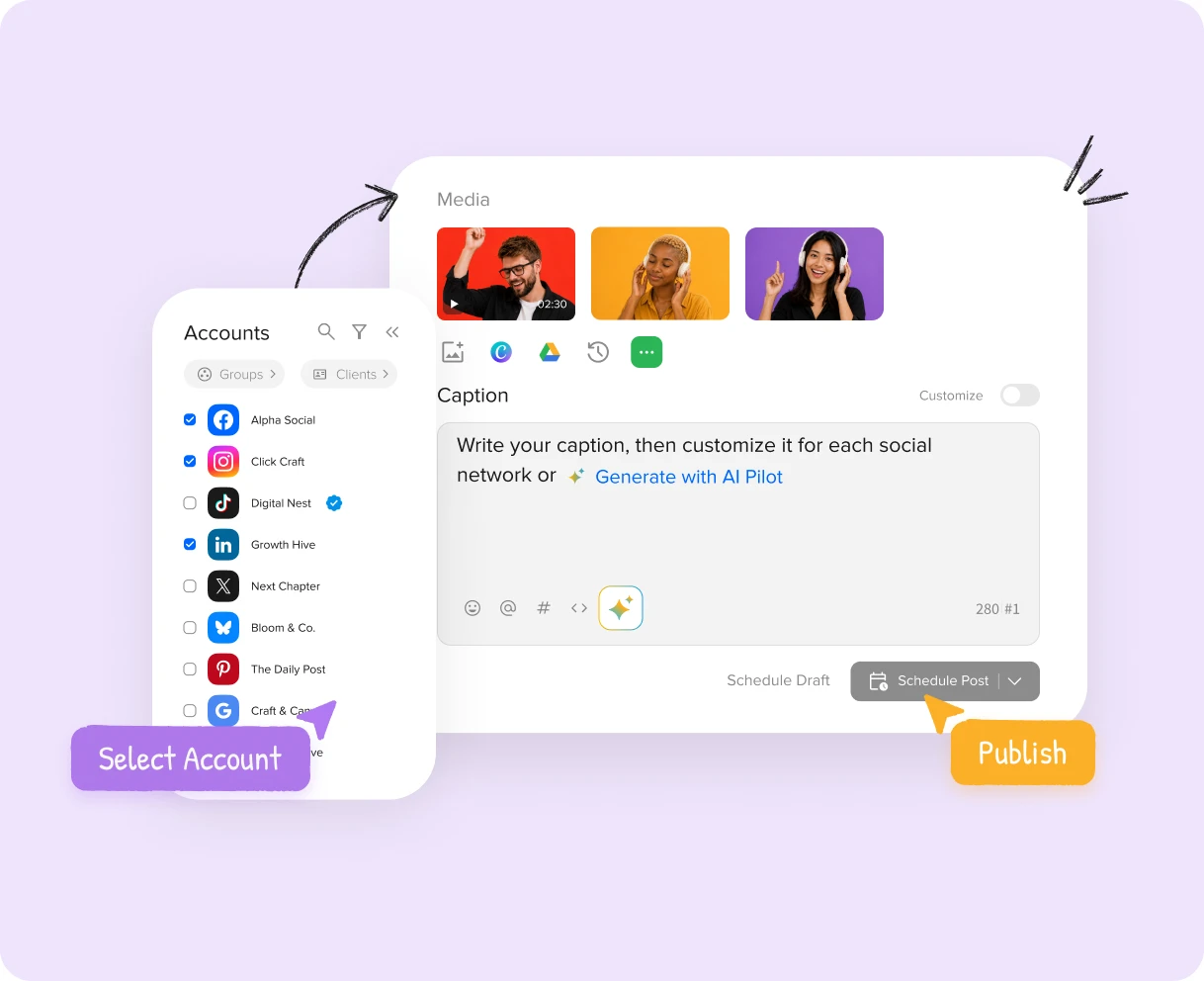
Plan, schedule and publish posts to connected social accounts. SocialPilot describes cross-account selection and a single compose workspace; publishing options can still vary by network and account type.
Analyze page and post performance, build dashboards, and combine selected account metrics into PDF or CSV reports. Confirm that the metrics and date ranges you need exist for each connected network.
Use Social Inbox to handle messages, comments and mentions from supported accounts. The current pricing table lists Social Media Inbox beginning with Standard, so confirm both plan access and network coverage.
Understand the offer
Pricing and getting started
SocialPilot advertises a 14-day free trial across its plans and says a credit card is not required to start. Use the trial to check account connections, publishing, analytics and any inbox workflow before a paid commitment.
Plans differ by connected accounts, users and features. The published table lists Bulk Schedule and Social Media Inbox from Standard, with Client Approval on Premium. Compare the current monthly and annual totals, add-ons and renewal terms on the vendor pricing page.
Look a little closer
Before you choose
Bulk scheduling imports a CSV and can queue hundreds of posts, but verify the selected plan and review the preview before sending a large batch. Test media, captions and timing with a small representative file.
Check each social network and account type in a trial. Publishing and inbox support may differ, so connect the real profiles and verify the post, comment and message actions that your team needs.
Run a reporting test with real accounts: inspect the available metrics, historical period and PDF or CSV exports. A vendor analytics page does not establish that every metric or date range is available for every network.
If managers or clients must approve posts, map who drafts, reviews and sends final approval. Confirm the necessary plan, user allowance and workflow behavior before moving an existing publishing process.
If a client must explicitly approve posts, inspect the Auto-Approve permission before scheduling. SocialPilot says enabling it bypasses client sign-off: a post still awaiting approval one hour before its scheduled time can be published. Try an unanswered approval request with a harmless post and confirm the setting and queue behavior before moving a client's live calendar.
Before relying on a scheduled Instagram Story in SocialPilot, inspect the connected account type and selected publishing mode. SocialPilot's guide says a Business account can use Direct Publishing or a Mobile Reminder, while a Personal account uses Mobile Reminder; the reminder path needs someone to finish the post on a phone. Assign that final step and verify publication for time-sensitive content.
Before relying on a scheduled campaign, assign someone to check SocialPilot's Error tab and the destination network after publication time. Its Help article says a rejected post may need content changes and re-sharing or rescheduling; an expired authorization token or lost Page/Group access may need reconnecting or reauthorization. Use a harmless scheduled post to rehearse who diagnoses and retries a failure before moving a client's live calendar.
Before using SocialPilot client approval links for a live publishing calendar, test a harmless post with a Client role. The official Help says Approve On-the-Go links let clients review and approve pending posts without signing in; the Client Portal calendar shows only accounts accessible to that client. It also says an Approval link does not expire until refreshed from Users. Check who receives the link, which posts and accounts it exposes, and the old-link behavior after refresh before making it a routine approval path.
Before editing a live client's queued posts in bulk, rehearse with harmless scheduled posts using the intended SocialPilot role. Its Help says selection checkboxes appear only for posts that role can edit, a batch can include up to 30 posts, and Bulk Edit activates with two or more selected. Review caption, media and schedule changes across the selected posts, then confirm the saved queue. Closing the editor without saving discards the changes.
Before using SocialPilot for time-sensitive client posts, decide who receives failed-publish alerts. Its Team Notifications let an Account Owner or Admin set Posting Errors for Admins, Team Members and Clients as immediate alerts or a daily summary via mobile, email or both. Applying a change only to upcoming users leaves existing members' settings alone; enforcing an alert locks it for everyone in that role, current and future. Verify the recipient and timing settings with the team that will monitor failed posts.
Before pausing a client's calendar in SocialPilot, confirm whether the Manage Accounts control targets one connected account or all accounts. Its Help says Paused halts sharing and Running resumes scheduled sharing; posts whose publish time passes during a pause move to Unscheduled. Check that tab and the remaining queue before restarting a campaign. Removing a connected account has a different consequence: SocialPilot says it also deletes that account's queued posts. Inventory the queue before removal, and rehearse pause and resume with harmless scheduled content.
Before bulk scheduling a CSV in SocialPilot, check each post's account and publishing time in the preview. SocialPilot says accounts chosen at the account-selection step are assigned to posts without an account; if no posts in the batch have an assigned time, they take the next available schedule slots that same day. Review destinations and times before choosing Schedule All Posts, especially when several client accounts are connected.
If a campaign relies on a first comment for hashtags or detail, check it separately from the main SocialPilot post. Its Bulk Import guide says CSV first comments are scheduled only for Facebook, Instagram and LinkedIn; adding one to another platform's row does not publish it. SocialPilot also says an Instagram post may show as delivered while the first comment fails when manage-comments permission was not granted during reauthorization or community guidelines block it. In a fictional cross-network batch, preview the account and comment field, then compare the queued warning and delivered post/comment status. Keep essential campaign information in the caption and confirm the selected plan, connected-account rights and destination behavior before publishing live content.
20 distinct sources behind this profile. Research observed Oct 26, 2026. Features and offers can change.
View sources and research →
