

Find your fit
Who it is for
Pipedrive is geared to sales teams that already have, or can define, a repeatable lead-to-deal process. A small team may use one simple pipeline; a larger team should agree on stage definitions, ownership and required fields before customizing several.
The current plan names are Lite, Growth, Premium and Ultimate. The vendor maps older Essential, Advanced, Professional/Power and Enterprise plans to these newer names; an existing subscriber should compare their actual entitlement rather than assume a new prospect’s plan table applies unchanged.
The work it supports
Core capabilities
Keep people and organization contacts in one place and link them to the appropriate deals. The detail view can hold communication history and next activities. Confirm contact permissions and deduplication rules during migration.
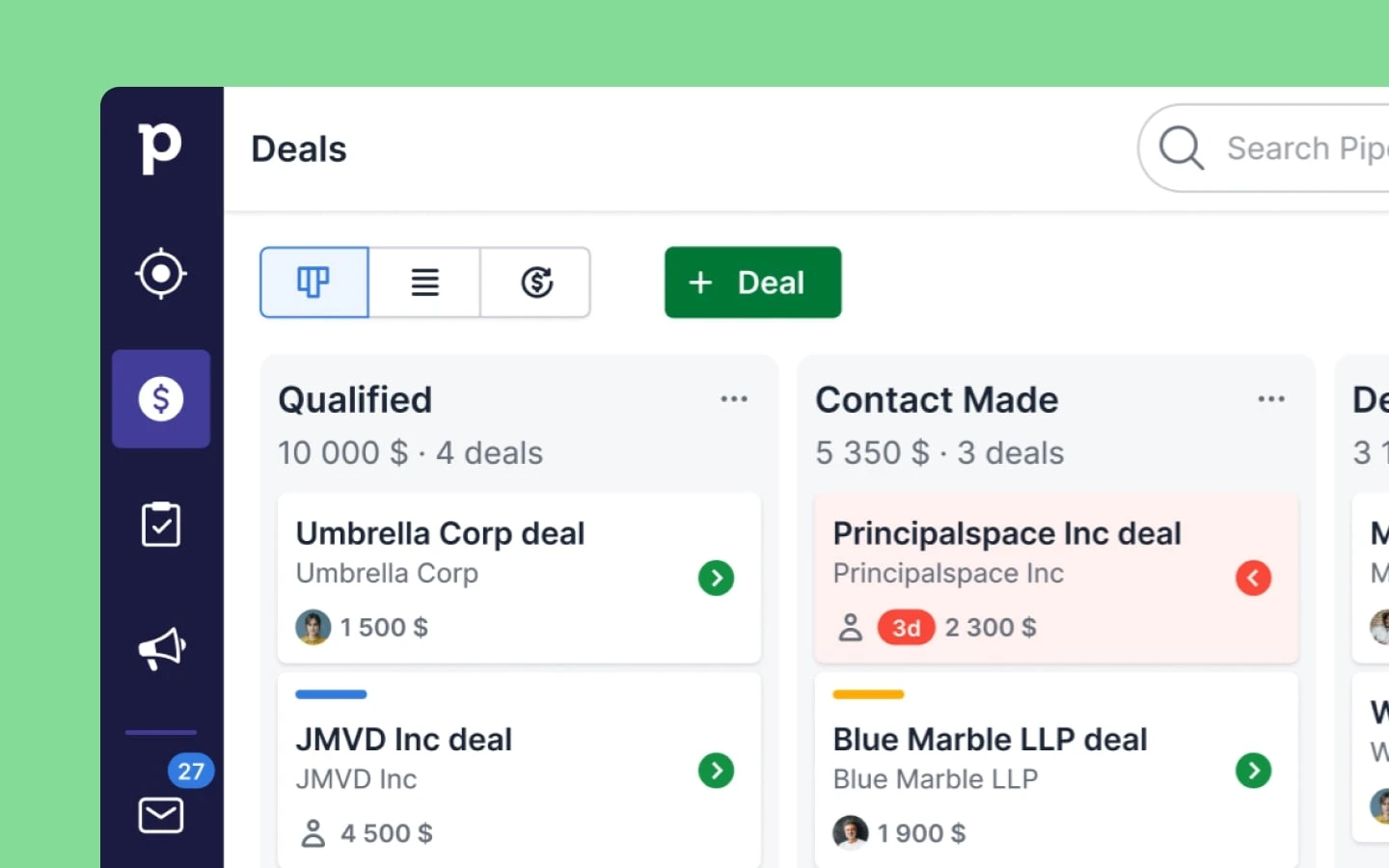
Configure deal stages and move opportunities as work advances. Managers can inspect stalled stages and upcoming actions. Agree on what qualifies a stage change before using pipeline totals as a forecast.
Attach calls, meetings or tasks to contacts and deals, then inspect planned or overdue work. The Android and iOS apps support scheduling sales activities on the go; test notifications and offline use with the team’s actual devices.
Understand the offer
Pricing and getting started
Pipedrive offers a fourteen-day trial without a card, not a continuing free plan. Before starting, note the selected tier, what trial add-ons are enabled and which records and features remain accessible after the trial.
Lite covers the central sales workspace; Growth and higher add more email and automation options, with additional capabilities on Premium and Ultimate. Pricing varies by seats, billing term and add-ons. Confirm the actual currency and total at checkout.
Look a little closer
Before you choose
A rep can assign a next action to a deal and review the activity list or calendar. Pipedrive describes reminders and calendar sync; check which plan and permissions cover the team’s email/calendar setup.
Use due and overdue activity indicators to find follow-ups that need an owner. The CRM records workflow state; it does not replace the human judgement needed for qualification or customer conversations.
Test one representative lead and activity on desktop and each required phone platform. The current mobile help lists Android 11 or newer and iOS 18 or newer, which matters for older devices.
During a pilot, import a small sample, check duplicates and labels, create a deal, schedule an activity and inspect its history under a regular user account. Measure whether the configured stages and reports match the business’s definitions, not just whether the screen loads.
Before importing real customer records into a trial, plan how to leave it. Pipedrive says that without billing details, company-account access is restricted when the trial ends and recommends exporting data beforehand. Check that a sample export contains the records your team needs before the trial expires.
Before a Pipedrive trial ends or a CRM move, check more than a deal or contact spreadsheet. Pipedrive says global admins export item types separately and other users see only records allowed by their visibility; activities, notes and files linked to deals and contacts need separate exports. Google Drive files are omitted from global export, and generated export files remain available for 28 days. Have an authorized admin inspect representative linked records and files while access remains available. No complete account archive or real export was tested here.
Pipedrive's two-way calendar sync brings external events into the CRM as activities, and deleting a synced activity in Pipedrive also removes it from the external calendar. Visibility settings need deliberate review: syncing private events as public exposes later private events to all Pipedrive users. For Google Calendar, an event left at Default visibility remains Public in Pipedrive; explicitly mark a personal event Private and check the chosen settings before connecting a personal calendar.
Email sync deserves its own privacy trial. Pipedrive lists personal mailbox sync from Growth and a team inbox from Premium; setup also selects how far back to sync. A personal Sales Inbox is private, yet a conversation marked Shared can appear to colleagues in linked deal or contact views when they can access the item. A team mailbox can instead restrict visibility to team members. Changing the default affects later synced or forwarded mail, while an individual conversation can have its own setting. Check two synthetic threads with the intended viewer before syncing live mail.
Spreadsheet import matching differs by record type. Pipedrive says same-name deals have no duplicate identifier and all import; a same-name person can merge when organization, phone or email matches, while organizations use name and address. The importer also offers an option to bypass merging. Before loading live CRM records, test a fictional sheet with repeated deal names, same-name people and organizations at different addresses, then check which records merge or remain separate.
Before cleaning up synced Pipedrive mail, use a synthetic conversation linked to a deal to compare Archive with Delete. Pipedrive says Archive removes it from Sales Inbox but keeps the linked history and can be undone; Delete removes it from Pipedrive and cannot be recovered. Depending on sync settings, either action in Pipedrive can also archive or trash the external email; deleting in the mail client also deletes the CRM copy. Archiving in the mail client generally leaves Pipedrive unchanged, except on Gmail connections. Check the personal or team account's toggles and linked record before any bulk cleanup.
Before merging duplicate CRM contacts, compare two fictional same-name people with different phone numbers under the intended user's permissions. Pipedrive says Merge Duplicates requires an admin or an enabled permission; an admin can see all potential matches, while a regular user sees only records their visibility allows. Choose the primary item deliberately because its value wins a conflict, and inspect Preview before committing. Pipedrive says completed duplicate merges cannot be undone, so confirm the records really represent one person before merging live contacts.
Plan both record ownership and seat count when offboarding a Pipedrive user. Deactivated users' deals, contacts and activities remain assigned to them until reassigned; linked items need their own owner changes. Deactivation offers an option to remove the unused seat, but leaving the seat in place leaves billing unchanged. A removed seat takes effect at the next billing cycle, and assigning a new user to it before then keeps the seat. Check the intended owners and seat count before ending a live user's access.
When clearing stale Pipedrive leads or deals, test Archive on a fictional record before deleting live data. Archive removes it from active views without losing history and counts it against a separate archived-item limit; core editing and new activity links are restricted, though notes and email remain possible. You can unarchive a record, but a deal whose former pipeline or stage has been removed needs a new assignment to appear in a pipeline. By contrast, an admin can restore a deleted deal only within 30 days. Check whether archiving triggers automations or webhooks before bulk cleanup.
For teams on Pipedrive Growth or higher, include automations in a user-offboarding checklist. Pipedrive says transferring ownership to another global admin deactivates the automation for everyone until the new owner checks connected apps, feature access and email sender, then reactivates it. Keep a list of expected triggers and test a harmless path after transfer before ending the former owner's access.
Before deactivating a Pipedrive user, have an account-settings admin review needed customer conversations linked to CRM items and their sharing status. Pipedrive says deactivation stops email sync; shared emails linked to items remain, but private linked emails are deleted after 30 days. Decide how to retain permitted correspondence before removing access, without assuming the private messages can be recovered later.
Before using Pipedrive with a team, test access with representative non-admin users. Visibility groups govern which data users can see, while permission sets govern what they can do. Pipeline visibility can hide an entire pipeline and its deals from restricted users, including list and search views; deal or account-settings admins retain access. The available visibility-group setup depends on plan. Check a fictional deal under the intended roles before importing customer data.
If an email appears more than once in a Pipedrive item view, check whether multiple teammates sync the same thread, a shared address is connected under several users, or both Email Sync and Smart Bcc captured it. Pipedrive says a linked thread marked Shared can appear to users with access to the item, but only its owner can reply. Email Sync requires Growth or higher; for a shared address, compare the Premium-or-higher Team Inbox with separate user sync. Verify the view and reply rights with permitted sample threads before changing live mailbox settings.
Pipedrive's Duplicate Deal command makes a new deal, but its copy boundary matters. The vendor lists linked people, organizations, products and projects, labels, value/probability, and stage/pipeline as carried over when present. Activities, email history, notes/comments, files/documents, and subscription or recurring-payment records are not copied. Try it with a fictional deal and inspect the new record's relationships and history before using duplication as a workflow shortcut. Open-deal limits depend on plan; a duplicate is not a full backup of the original record.
For a spreadsheet correction to existing Pipedrive records, export the relevant list with each item's System ID and the fields to change, then map the ID column on reimport. The ID tells Pipedrive which item to update; this route is separate from import duplicate matching or Merge Duplicates. Contacts without linked deals need IDs from Contacts rather than Deals. An admin or permitted user must run it, and the file must stay within 50 MB and 50,000 rows. Pilot a fictional record, compare it after import and retain a reference export before changing real data.
Before a Pipedrive migration that depends on automations, test a fictional record on the actual Growth-or-higher plan. Pipedrive says automations are not retroactive and most spreadsheet imports do not fire them, even when imported fields match a trigger. The documented exceptions are lead updates with event triggers and added or updated date fields for activities, deals, organizations or people with date triggers. Bulk edits may fire automations, but large runs can exceed frequency limits, and admins can choose to skip them. Check the automation's active state, trigger conditions and execution history within its 15-day retention window before relying on a bulk update to send follow-ups or create tasks.
Before a team relies on Pipedrive to send deal handoff emails, inspect a fictional, no-send workflow on its current plan. Automations and Email Sync require Growth or higher. The send email action can use the automation owner's connected account, the current item owner's default account, the triggering user's default account or a configured Team Inbox (Premium or higher). Item-owner and triggering-user choices resolve when the automation runs; if that user lacks a connected personal email account set as default, the email step fails. A Reply-to address can route responses elsewhere but does not replace the original sender. Check the trigger, item owner, sender choice, default account and any existing send-step history before enabling customer messages.
Treat Pipedrive's red Rotting tile as a stage-specific inactivity cue, not a due-date list. Its threshold uses the deal's last update and ignores the next activity date, so a deal with a far-future follow-up can still turn red. Completing an activity, adding a note or file, or changing a linked email can reset the timer; some email actions may be invisible to a colleague in the changelog. In a fictional pipeline, compare a distant scheduled activity and a recent permitted email change under the intended viewer, then set stage thresholds alongside the team's actual follow-up cadence.
Before changing a Pipedrive follow-up automation with a delay, account for executions already waiting. On Growth or higher, deactivating the automation or changing its trigger, condition or action prompts a choice to retain or cancel pending executions. If cancellation is left unchecked, pending actions can still fire after those changes; a condition after a delay is evaluated when the wait ends. Use a fictional deal and a harmless action to compare the choices before altering a live sequence. Check the selected plan's delay count and 90-day combined limit.
Before restoring a deleted Pipedrive activity, check its owner, calendar connection and guest list. Pipedrive says the Restore data page covers deletions from the past 30 days, and a user can restore only activities they are allowed to see. With one- or two-way Google Calendar sync, a restored activity also returns to the owner's Google Calendar; with Outlook Calendar sync, it reappears with restored notes and guest notifications. In a fictional no-action review, identify the intended restorer and who would check the external event and any guest notice before a real restoration. Confirm the account's plan, permissions and sync settings; no activity, calendar event or notification was restored or sent.
33 distinct sources behind this profile. Research observed Oct 26, 2026. Features and offers can change.
View sources and research →
