

Find your fit
Who it is for
The Lite plan targets a small team at one location, while higher plans allow more members and locations. Match the chosen plan to warehouses, order volume and staff roles before importing a full catalogue.
Purchasing and sales teams can share item and order records. Pilot one supplier receipt and one customer order to check who changes quantity, cost and allocation at each step.
The work it supports
Core capabilities
inFlow Inventory brings stock and order records into one system. In a trial, reconcile opening quantities, then receive, reserve and fulfill a sample order before relying on its balances.
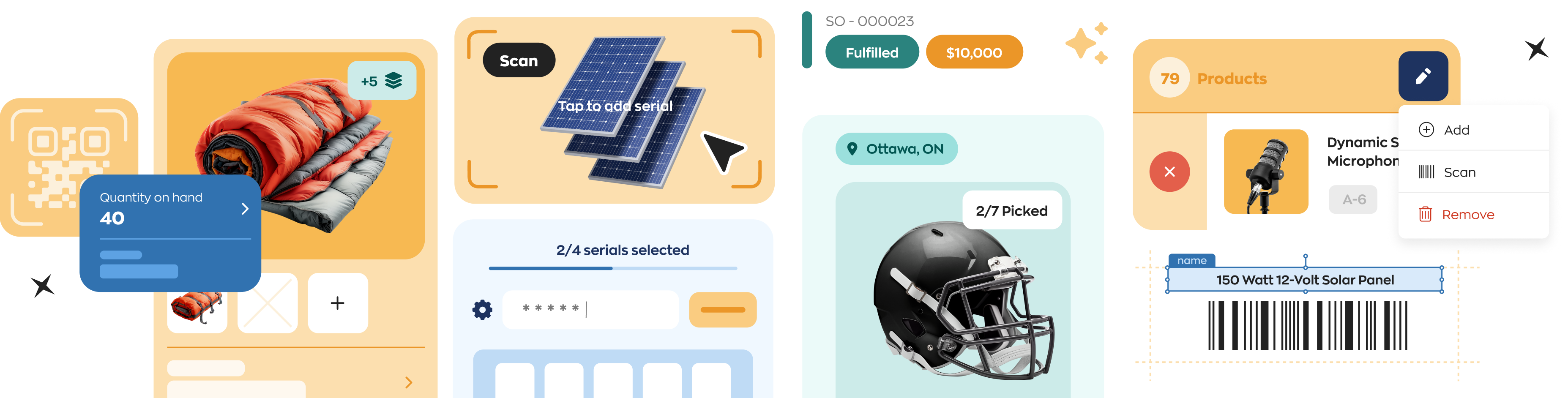
inFlow can create labels and scan barcodes for receiving, picking and stock lookup. Check existing UPCs, label sizes and scanner or phone compatibility with sample products before buying hardware.
Low-stock notifications compare reorder points with anticipated quantity, including on hand, on order and reserved stock. Configure the right location and staff recipient, then test an alert before relying on it for replenishment.
Understand the offer
Pricing and getting started
inFlow advertises a 14-day trial, after which continued use needs a paid subscription. Trial a bounded set of products and orders, and confirm export and access terms before entering live operational data.
The current pricing page separates Lite, Core, Pro and Max by team members and locations. Confirm the current currency, billing term, add-ons and limits in checkout rather than relying on a frozen price.
Look a little closer
Before you choose
Purchasing tools can use location-specific reorder points and create purchase orders or transfers. Check supplier minimums, receiving exceptions and cost updates in a trial workflow.
The mobile app brings item, sales and purchasing tasks onto a phone, including camera barcode scanning. Test connectivity, role permissions and the exact picking or receiving flow on intended devices.
Reports can help reconcile stock, purchasing and sales. Confirm the fields, filters and export format needed for a specific operating or finance report before treating it as an approved source.
Low-stock emails show a limited first set of items and summarize other locations. Have the reorder owner open the full inFlow list before placing purchase orders; an email alone may not be the complete shortage picture.
For an exit or year-end archive, plan several exports rather than assuming a downloadable database backup. inFlow says backups cannot be downloaded and describes CSV files by data type. Its web guide says Product Details excludes deactivated items and that product images can be exported but attachments cannot. Test sample product, stock, order, image and report files against the records you need before changing or closing an account.
With inFlow Inventory's purchase-order and inventory-value push to QuickBooks Online enabled, a partial receipt sends a bill containing only received items; later receipts update that same bill. inFlow says separate QuickBooks bills require splitting the purchase order by received items. Before production sync, reconcile opening inventory value and confirm that the bill sequence matches how the supplier invoices partial deliveries.
In a permitted small count, check who can count and review before relying on the resulting quantity record. inFlow says Web counts use a snapshot, advises pausing orders and inventory movement, and omits zero-quantity items from 'add all products at this location.' Count sheets use 'Complete and adjust' before the overall count moves to In review and Finalize. Reconcile discrepancies with Movement History or inventory movement reports; product tabs show at most 100 rows. For separate stock adjustments, record a reason and remarks.
For lot- or serial-tracked items, test the separate Stockroom app with a representative GS1 Digital Link QR label and confirm the needed higher-tier plan or add-on. inFlow says an ordinary product barcode will not work for these items in Stockroom. An expired-lot scan raises an alert but is not blocked; define and rehearse a staff review or hold step before relying on the workflow to keep expired stock out of shipments.
For CSV stock transfers, check plan rights and review the file before choosing Open or Completed. Open creates transfers without moving stock; Completed moves it immediately, but a transfer can be skipped when the source location lacks stock. Each serial needs its own quantity-one row (and completed imports require every serial); lot-tracked items need a row per lot and quantity. A misspelled product or location can create a new record. Try a small synthetic file and reconcile transfer status and quantities before a real import.
Before splitting an inFlow sales order for staged shipments, decide whether you need two invoices or one final invoice. Splitting by stock on hand or picked items creates separate orders and invoices, while payments already recorded stay on the original order; use partial fulfillment if one final invoice is needed. inFlow says not to split Shopify or WooCommerce imported orders because the integration cannot push backorders, and strongly advises against splitting paid orders because of payment and integration errors. Rehearse an unpaid sample and check the store and accounting handoff.
For an item bought by the case and sold individually, set inFlow's Standard unit to the stocked each, Purchasing unit to case with a checked conversion, and Selling unit to each or leave it blank to use Standard. Its guide illustrates a received case of 24 becoming 24 each in stock. Enter vendor price per case and sales price per selling unit, then rehearse a fictional receipt and sale to reconcile quantities and prices before importing a catalogue. Serialized products cannot use units of measure; confirm a different setup for them.
Before replacing a product record in inFlow Web, decide what deactivation should do to its name and stock. inFlow says product records are deactivated rather than deleted, and inactive names still block duplicate names; rename the old record before deactivation if you intend to create another using its name. Deactivating a product can create a stock adjustment to clear existing stock or leave it unchanged. If stock is kept, the record remains in Current stock. Rehearse with a fictional product, inspect the name and quantities before and after, and confirm permissions and plan access before real catalogue cleanup.
Before using inFlow's Online Showroom, decide whether customers should see a public catalog or only invited views. inFlow says the public Showroom has a signup button for new customers, while private invitations can tailor visible products, stock and prices per recipient. The guide also says Show prices must be selected for customers to place orders, including through a special invitation, and checkout must be enabled. In a vendor-led demo with fictional items, compare both views and the ordering path, then confirm the required plan or add-on and settings before inviting real customers.
Before enabling inFlow purchase-order approvals, confirm access in the selected plan or add-on and set approvers and optional amount limits. The Cloud Help guide says newly created POs need approval before they can be printed, emailed, received or paid, while POs already on the account are automatically approved when the setting is turned on. Run a harmless old and new PO through the process with an approver and non-approver; check who can change vendor, line items or price after approval before treating it as a purchasing control.
Before relying on a printed inFlow pick list, compare it with the sales order's Pick tab in a harmless short-stock trial. Opening the Web Pick tab or printing a pick list for a confirmed sales order starts a picking session, which allocates specific stock by sublocation, lot or serial number; allocated units remain on hand while affecting available stock. inFlow says allocation failures appear as out-of-stock lines in the Web or Mobile Pick tab, but do not print on pick list documents. Confirm how the team flags missing stock and releases allocations when picking stops before dispatch.
Imagine a ten-unit supplier order arriving six units today and four later. In inFlow Web, record six on that line in the Receive tab with Partial receive, optionally set the receipt date, save, and look for the half-filled status on Purchase; check the remaining four against the packing slip when they arrive. If more goods turn up than ordered, use Add unexpected product, enter the quantity, and review the receiving choice before Complete receiving. Keep the physical receipt separate from supplier payment: inFlow says a PO is complete only when all products are received and paid in full. Confirm plan access, staff permissions, unit settings and the separate Mobile procedure before using this for live stock.
24 distinct sources behind this profile. Research observed Oct 26, 2026. Features and offers can change.
View sources and research →
