
Find your fit
Who it is for
Lite is an entry point for businesses billing up to five clients, with invoicing and expense tracking. Compare that limit with both active and archived billable clients before choosing a tier.
Plus adds financial and accounting reports and lists fifty billable clients. Teams needing that reporting should confirm the specific reports and account access they require.
The work it supports
Core capabilities
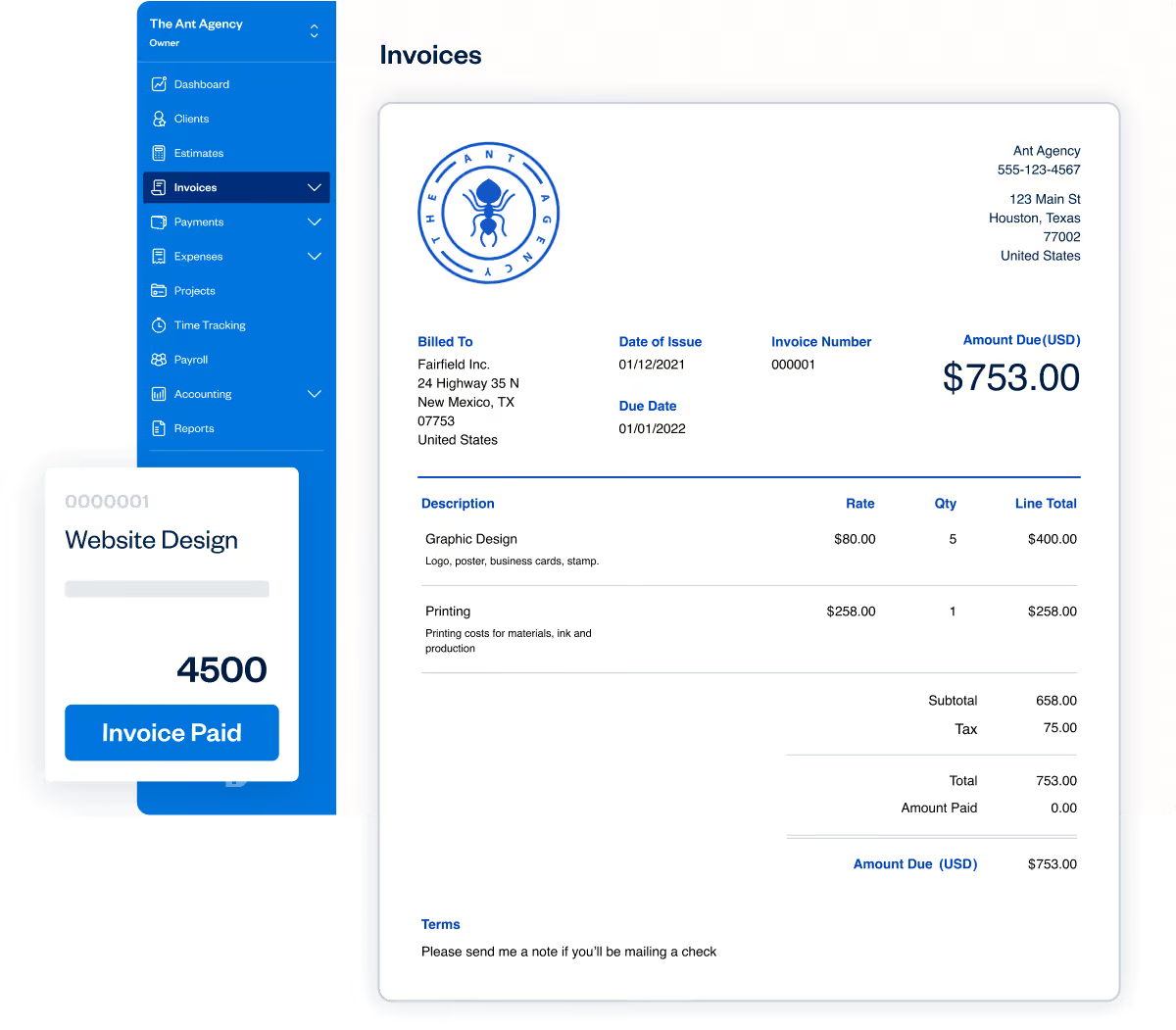
On Lite, send invoices to clients. Check invoice details, tax fields, payment options and the client limit with a representative draft.
On Lite, track expenses in real time. Categorize a sample expense and check how it appears in the account and any client billing workflow.
On Plus, run financial and accounting reports. Confirm that the plan includes the specific statements and accounting workflow your business needs.
Understand the offer
Pricing and getting started
FreshBooks currently offers a 30-day free trial without a credit card. Test a sample invoice, expense and report during the trial before choosing a paid plan.
Lite lists five billable clients; Plus lists fifty. Check current pricing, promotion terms and add-on costs before buying.
Look a little closer
Before you choose
Client limits and report access differ by plan. Check active and archived clients and verify that the chosen tier covers the reports you need.
A draft invoice or categorized expense does not prove payment collection or accounting accuracy. Review a full sample workflow before relying on it.
If client expenses need to be billed back, test the expense-to-invoice flow and inspect the resulting line items.
Before moving accounting records, make an export checklist. FreshBooks documents separate CSV routes for active and archived invoices and expenses, a separate download for uploaded expense receipt images, and a Support-requested CSV for estimates and proposals. Reports can be downloaded as CSV or saved as PDF, but run one currency at a time. Try representative invoices, receipts and reports, and arrange any Support export before relying on a migration.
Before enabling or changing a FreshBooks recurring template, check its invoice schedule, delivery setting and whether AutoPay or Advanced Payments AutoCollect is active. FreshBooks warns that Auto-Draft can still charge a client when recurring payments are active. Pausing the template stops new invoices; removing its saved payment stops automatic charging but can leave scheduled invoices generating. Verify both invoice and payment behavior before relying on either change as a billing pause.
If you need to reconcile older FreshBooks bank activity, check your plan and rehearse the opening balance and transaction import with a representative statement. FreshBooks offers Bank Reconciliation on trials and Plus, Premium and Select plans. A connected bank may bring in at most 90 days of activity, and the reconciliation start date cannot precede the first imported bank transaction. FreshBooks documents a separate CSV transaction import for missing history; confirm the needed dates and balances before relying on the connection alone.
If an invoice has an installment payment schedule, review its reminder settings and recipient list before enabling automatic reminders. FreshBooks says enabled reminders follow each scheduled payment rather than the invoice's overall due date; with all three reminders on, each overdue installment can trigger three reminders. Those reminders go to the invoice's initial recipients, including secondary contacts. Payment schedules apply to invoices, not recurring templates or retainers. Check dates and recipients with a synthetic invoice before sending a real one.
FreshBooks separates active, archived and deleted invoices. Its documented invoice CSV covers active and archived invoices, while deleted invoices sit in a separate list and can be undeleted. Before treating that CSV as a complete migration or record handoff, check the Deleted list and rehearse an undelete/export with a synthetic invoice for the chosen date range and currency. Confirm the treatment of any real deleted records with the account owner.
FreshBooks counts both active and archived clients toward plan limits. It says deleting a client after collecting payment frees a client slot and keeps past invoices and payments in the business account, but you cannot invoice that client while deleted, and the client cannot open previously sent invoice links until restored. Before deleting a real client to fit a tier, reconcile outstanding billing and check whether they still need those links.
Before enabling FreshBooks reminders or late fees for a client, distinguish existing invoices from new ones. Its Help says activating client-level reminders can schedule future reminder dates on existing as well as new invoices; its automatic late-fee setup is for new invoices only and adds a line item if an invoice remains unpaid after the chosen delay. A change to late-fee settings on one invoice can also carry to that client's future invoices. Rehearse with synthetic old and new invoices, then confirm dates and amounts before applying real account settings.
FreshBooks' Share via Link changes a draft invoice to Sent, so check its report status before using a link as a preview. Anyone with the link can pay, and the link does not offer client-account creation. Changing the invoice's client deactivates its old link. Rehearse with a synthetic invoice, share only with intended recipients, and generate a fresh link after a client change; email the invoice if the client needs an account.
Before sending a FreshBooks invoice, choose whether you need one upfront deposit or a dated payment schedule. An invoice can request only one deposit, its full amount is due when paid online, and the option to add a deposit disappears after any payment is recorded. A payment schedule can set up to 12 dated installments; a client can pay one or several, while paying a partial amount requires compatible online payments and the invoice setting enabled. Inspect a fictional invoice from the client view before billing a real customer.
Before enabling Automatically Apply Credits for a recurring template or retainer, test a fictional client with available credit. FreshBooks says that for templates and retainers sent automatically, the setting applies credit before the generated invoice is sent and before recurring payments are processed. The documented automatic path covers items sent automatically, not those saved as drafts first. Check the sample invoice balance and expected charge before changing real client billing.
For recurring template or retainer payments made through FreshBooks AutoPay or AutoCollect, plan for a failed charge against the saved payment method. FreshBooks says it emails the primary client, enters Retry, and attempts the original saved method within 24 hours. If that retry fails, it makes a second automatic attempt; after a second failed retry, the invoice becomes Declined and automatic retries stop. The business can request a manual retry from the declined invoice for another attempt within 24 hours, or ask the client to update payment details, which triggers a retry. Assign someone to review Declined invoices.
To rebill a client expense in FreshBooks, assign it to the client or project and mark it billable. FreshBooks says the expense and invoice must use the same currency for the expense to appear on the invoice. Including the expense receipt image is optional; check the imported line and any attachment on a sample invoice before sharing it. Once rebilled, the expense moves from Unbilled to Billed.
Before importing expense history by CSV into FreshBooks, have the account owner reconcile the file against existing expenses and balance-payoff transfers. FreshBooks says it imports duplicates and transfers rather than filtering them, and a file mixing positive and negative amounts imports only the negative rows. If Bank Reconciliation or other transaction types are involved, check its separate transaction-import route before choosing the expense importer. Compare expected rows and totals with the resulting expense list before relying on a migration.
Archiving a FreshBooks recurring template or retainer is a list-management action, not a billing stop: FreshBooks says archived items can continue generating invoices. For a recurring template, Pause Recurring stops new invoices and changes it to an inactive state; Archive only moves it to the archived list. Compare fictional active, archived and paused templates against the next scheduled invoice date before changing real client billing. Separately inspect any saved recurring payment method and invoices already generated, and confirm the retainer's own stop procedure in the selected account.
Before deleting a FreshBooks team member, inventory recurring expenses that person created. FreshBooks says deletion stops and automatically deletes those expense schedules; review and recreate needed ones under a remaining authorized login, then compare a fictional next expense date and category. Keep this expense workflow separate from client recurring invoice templates. A team member on FreshBooks Payroll needs Support for deletion, and removing an unused paid seat takes a separate subscription change. Confirm the selected account's permissions and schedule ownership before a real offboarding.
For a fictional FreshBooks project, review each time entry's client, project, dates, hours and Billable status before preparing an invoice. Non-billable entries cannot be invoiced, and internal-client or flat-rate-project time defaults to non-billable. Generate Invoice lets you select a client, date range and projects, choose whether unbilled expenses join, and preview Detailed, Grouped or Simple time lines; check the populated rate too. FreshBooks says generating the invoice marks included time billed automatically, even though the next step can be to edit or save the invoice. Compare draft lines and total with the time log before sending. Deleting a generated invoice returns its time to unbilled, but undeleting it does not restore billed status. Confirm plan and team access for a real client.
24 distinct sources behind this profile. Research observed Oct 27, 2026. Features and offers can change.
View sources and research →
