

Find your fit
Who it is for
It suits employees submitting business costs and finance teams that need a repeatable path from receipt to approved report. Before adopting it, decide who owns the workspace, who reviews exceptions and which expenses will be reimbursed, company paid or merely recorded.
The work it supports
Core capabilities
On web or mobile, a user can scan a paper receipt, upload a file or create a manual expense. Other entry paths include distance and time expenses. The user can add coding such as category, tags and tax before sending a report to a workspace or another person.
A Collect workspace supports team expense tracking, receipt capture, simple approval workflows, employee reimbursement and connections to common accounting tools such as QuickBooks or Xero. The existing catalog fact that expense tracking is available on Collect remains true, though individuals can also track expenses outside that paid workspace.
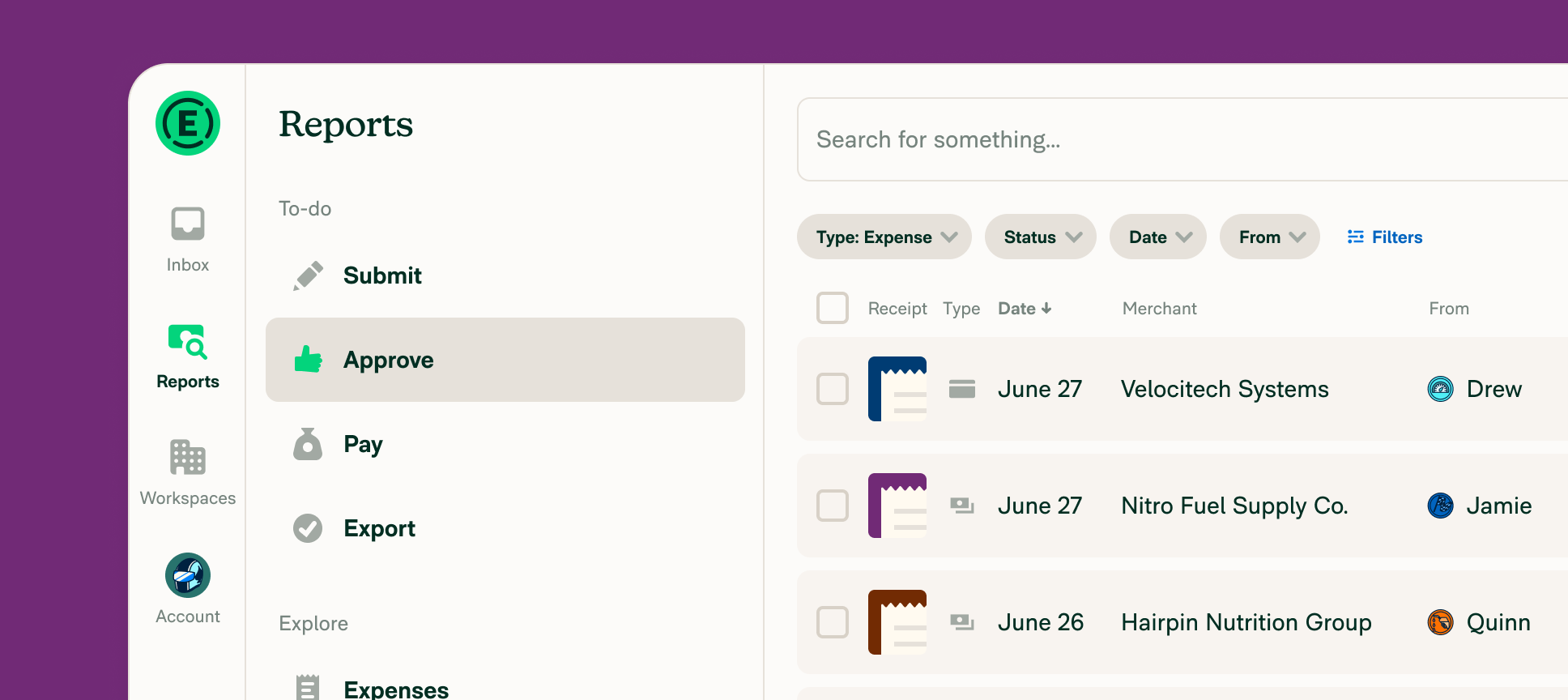
Workflows on Collect and Control can set submission timing, assign an approver and handle payments. An approver can review a report before payment; the workspace must have the appropriate roles and payment setup. Test the real approver chain, rejected items and delegated coverage before automating submissions.
Understand the offer
Pricing and getting started
The free Submit workspace has a clear limit: approvals, payments, company cards, invoicing and accounting integrations require a paid upgrade. An upgraded Submit workspace cannot return to Submit. If an invited approver accepts an upgrade while approving, Expensify says that person becomes the new workspace owner; agree who may take that step before circulating reports.
Paid workspaces use Collect or Control, while the subscription determines billing. The owner is responsible for the bill across the workspaces they own. Pay-per-use and Annual commitments differ, and Expensify Card activity can affect eligible pricing. Ask for the current total for the expected active members and actual subscription before committing.
Collect is generally tied to Pay-per-use; Control can use Pay-per-use or Annual. An Annual subscription carries a 12-month commitment and can restrict a move from Control to Collect until term end. The workspace owner, rather than an ordinary admin, manages plan and subscription changes.
Look a little closer
Before you choose
SmartScan reads receipt details such as merchant, date and amount, but the image needs a legible date and total. Blurry, faded or incomplete receipts can fail or be misread; the employee should check the extracted currency and amount, replace the image or enter the details manually. Scanning needs a connection to process, even if a photo was taken offline.
A free Submit workspace lets employees scan and code receipts and send reports to an approver without the company already adopting a paid workspace. The recipient can receive a report without an Expensify account. This is a submission path, not a free company approval, reimbursement, card or accounting service.
Control adds the more involved controls, including multi-level approvals, enterprise accounting or HR connections and wider policy rules. Some Rules settings are restricted even on Collect. Verify the exact rule, integration and approval depth needed, rather than assuming every feature shown in a help article is in the chosen plan.
SmartScan and report automation reduce retyping, but a captured receipt is not a reconciled accounting entry or a paid reimbursement. Finance should check coding, duplicates, approval history, bank-payment status and accounting exports on a small representative batch.
Pilot one employee's real workflow with non-sensitive sample data: scan a clear and a difficult receipt, correct coding, submit a report, send an item back, and inspect the approver view. Confirm the free Submit boundary before switching on a paid feature.
For a finance team, test the selected accounting connection and one reimbursement end to end, including an exception and a duplicate receipt or card charge. Agree who reviews exported transactions and who can change approval or rule settings.
Confirm country and currency support for reimbursements or cards, the workspace owner, chosen plan, expected billable members, card-related discounts and the renewal term in the actual account. Vendor documentation and this profile do not establish that a payment, export or rule has worked in a buyer's environment.
In New Expensify, test an expense with a primary receipt and a second image before relying on exports for an audit or migration. Expensify says accounting exports, CSVs and downloadable reports include only the primary receipt image; additional images stay visible on the expense in the app. Attach supporting receipts to the expense, not just its report comments, and verify how your team will preserve any secondary images separately.
Before enabling New Expensify's automatic report submissions, check both the Workspace and a representative member's Individual Workspace settings with harmless expenses. Expensify says a scheduled Workspace setting submits compliant expenses for approval while violations remain open. Selecting Manually still adds expenses to reports without submitting them, whereas turning Submissions off leaves expenses Unreported; personal Submissions may still apply when the Workspace setting is off or Manually. Confirm the chosen path before moving real expenses.
During New Expensify approval, decide whether a correction belongs to the whole report or one expense. Rejecting a report keeps its expenses grouped; rejecting one expense removes only that item and returns it to the submitter. A report with just one expense must be rejected as a report. If a report goes back to the submitter, it becomes Draft and needs manual resubmission even when automatic Submissions is enabled. Returning it to a previous approver instead leaves it Outstanding with prior approvals intact. Test the path with a harmless sample so everyone knows who acts next.
Before using New Expensify's Duplicate report for recurring expenses, make a harmless copy and inspect it. Only the report creator can duplicate it, and the copy includes non-card expenses but leaves out company and Expensify Card expenses. Expense dates reset to today and receipt images do not carry over. If the creator has lost access to the original Workspace, the copy goes to their primary Workspace; a cross-Workspace copy also omits distance and per diem expenses. Check the destination, dates, card items and required receipts before submitting the new report.
For planned absence in New Expensify, assign a vacation delegate to receive reports sent for your approval and check their actions in report history. Set an optional Clear after date and time so the delegation ends automatically, or remove it sooner by hand. Copilot is the documented route for ongoing expense-management access. Rehearse a fictional report sent during the absence and confirm who receives it when coverage ends. Delegation alone does not grant access to the workspace reimbursement account; verify that permission separately before expecting the stand-in to reimburse. No real report, delegate, or payment was tested.
Before correcting a New Expensify report, check whether it is Approved or Paid and who has the needed access. These reports are locked for expense edits, except that a Workspace Admin can attach or replace a receipt on an Approved report without unapproving it. Other changes require a Workspace Admin to unapprove; a Paid report first offers Cancel payment only to its Payer or an authorized Payments editor where the workspace tracks payments made elsewhere. After unapproval, the member can Undo Submit and edit before resubmitting. If the report was exported to accounting, coordinate deletion of the previous export there before exporting again. Rehearse the roles and accounting handoff on a fictional case before altering a real reimbursement.
Before cleaning up a New Expensify Draft report, distinguish deleting the report, deleting an expense, and removing an expense from the report. Expensify permits the report creator or a Workspace Admin to delete a Draft report; if an Admin deletes someone else's Draft, its expenses become Unreported instead of being deleted. Only the creator of a specific expense can delete that expense. Only the report creator can remove an expense from the report; Remove from report moves it to personal space. In a fictional cleanup, identify each actor and the intended destination of each expense before altering a real report.
Before allocating a New Expensify purchase across departments, test a fictional company-card and cash expense. Company-card and per-diem splits must total the original exactly; cash and distance splits may total less, but cannot exceed it. Each split follows workspace rules and can carry its own category or tag. Splits on Approved or Paid reports cannot be edited, so check totals and coding before approving a real report.
When a New Expensify approver leaves a workspace or a workspace admin removes them, reports still awaiting that person's approval move to the workspace owner. Leaving also replaces that approver in the configured approval workflow and leaves a system message on each reassigned report. A report can be pending with someone after a manual Change approver even when the configured workflow omits them. Before a fictional departure, have an authorized admin inspect the reports actually pending with that person and the owner's new review queue. A workspace owner must transfer ownership rather than use Leave, and a reimburser must designate a replacement first. Check the selected workspace's role and payment setup separately before assuming the new approver can reimburse.
18 distinct sources behind this profile. Research observed Oct 26, 2026. Features and offers can change.
View sources and research →
