Find your fit
Who it is for
An individual who wants more control over vault storage may prefer Enpass’s choice of cloud or local sync. That choice also creates a practical responsibility: identify which device and storage account contains the current vault, and plan a separate backup before moving computers.
An organization using Microsoft 365 or Google Workspace can evaluate Enpass Business for team vaults and role-based sharing. Business storage, admin controls and recovery belong to that edition; a personal subscription should not be assumed to include those team rights.
The work it supports
Core capabilities
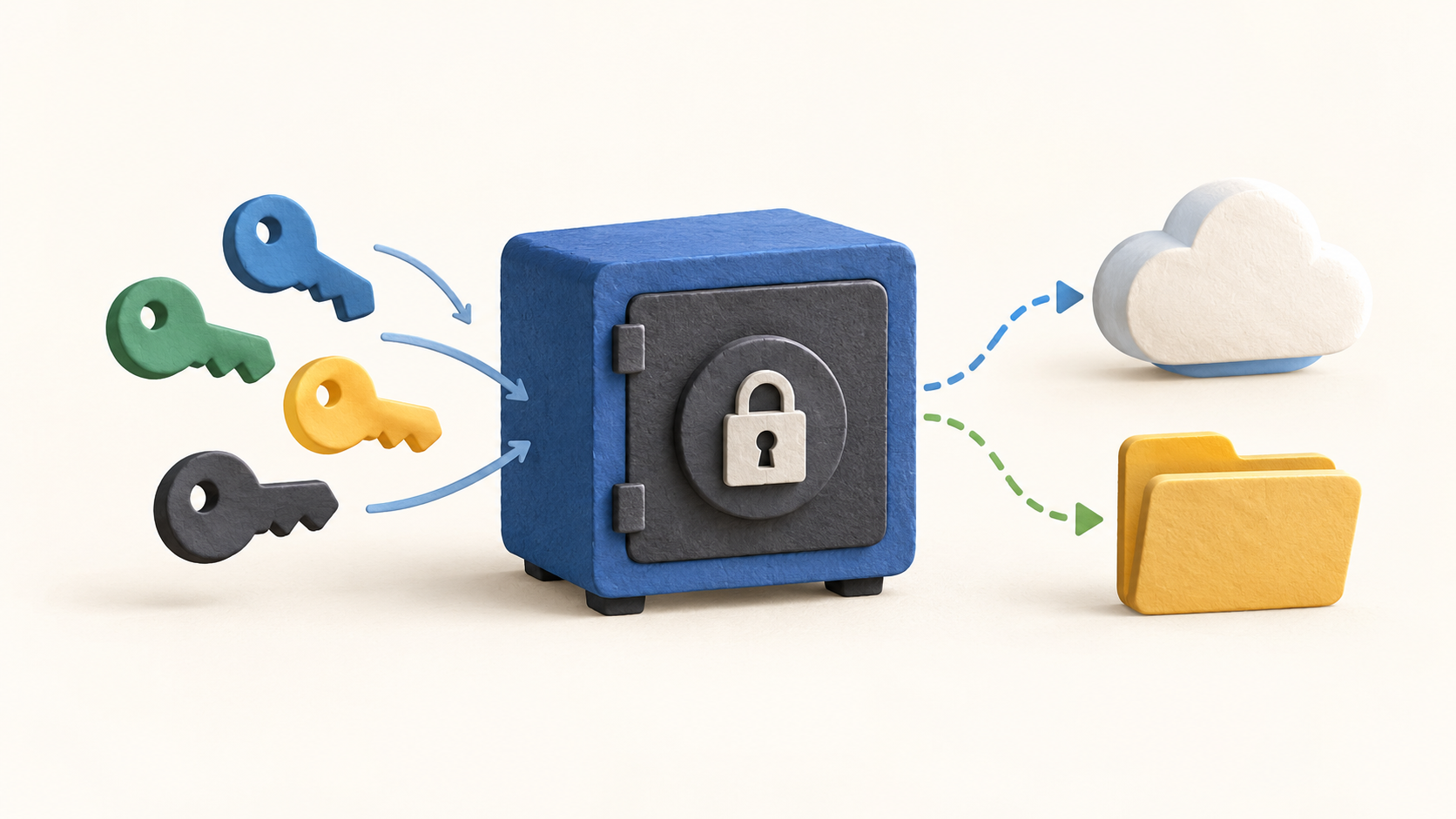
Enpass encrypts vault data on the device. For cloud sync, a selected third-party account stores the encrypted vault while Enpass decrypts and merges it locally. Ask who administers that cloud account, how its access is recovered and how the vault is protected if a device is lost.
Personal vaults can sync through a supported cloud provider, a local Wi-Fi connection or a folder. These routes have different availability and backup implications; choose one deliberately and verify that every intended device reaches the same current vault.
The Help guide shows a Last Synchronized timestamp for a vault. After changing a harmless sample item, compare that timestamp and item on a second authorized device before relying on cross-device access.
The browser extension can fill stored login details on a website. Enpass also has a password generator and lists passkey storage. Confirm the intended browser and device support with a test account before replacing an existing password manager.
Enpass can create daily automatic backups in a selected computer location and also supports manual backup and restore. A buyer should verify the chosen folder, backup frequency and restore path with harmless sample data before any full vault migration.
Enpass Business says organization credentials live in the company’s Microsoft 365 or Google Workspace environment. Its business vaults can be shared with team members or work groups with view and edit rights; inspect a sample vault’s access before distributing sensitive credentials.
Understand the offer
Pricing and getting started
Personal subscription registration uses the purchaser’s email to unlock paid features; activating a new device and adding the desired vaults are separate steps. Check the current personal plan, device rights and purchase channel for the exact account rather than treating the subscription sign-in as a vault transfer.
Enpass Business offers a 15-day organizational trial in its current Help guide, using a work email for the admin signup. The Admin Console manages business plan, status and license details; confirm the current seat quote, billing term, taxes and what happens when the trial ends before inviting a team.
The accessible official Help pages establish personal and Business offers but do not provide a stable complete price quote for every region and purchase route. Obtain the current checkout or sales quote for the intended edition, including its rights, taxes and renewal terms.
Look a little closer
Before you choose
Use a fictional login to compare save, generate and browser autofill on the devices and browsers the buyer actually uses. Then verify the vault sync timestamp before and after a harmless edit without exposing a real credential.
Before moving an existing vault, document its selected sync provider and take a recoverable backup. Test a restore with harmless items and confirm the cloud or local folder can be accessed after a device change.
For a business rollout, decide who controls the Microsoft 365 or Google Workspace storage and each shared vault. Check view versus edit access and plan for departing users and administrators under the organization’s policy before adding production secrets.
12 distinct sources behind this profile. Research observed Oct 27, 2026. Features and offers can change.
View sources and research →
