Find your fit
Who it is for
It suits operations, support and customer education teams that explain browser tasks repeatedly. A guide can be reused in a knowledge base or onboarding material, but Dubble’s core job is capturing and maintaining visual instructions; teams still need to decide where those instructions live and who updates them.
The product is branded Dubble and its official site identifies Paperform as its parent company. Buyers comparing vendors should keep that ownership separate from the Dubble product, domain and subscription they are evaluating.
The work it supports
Core capabilities
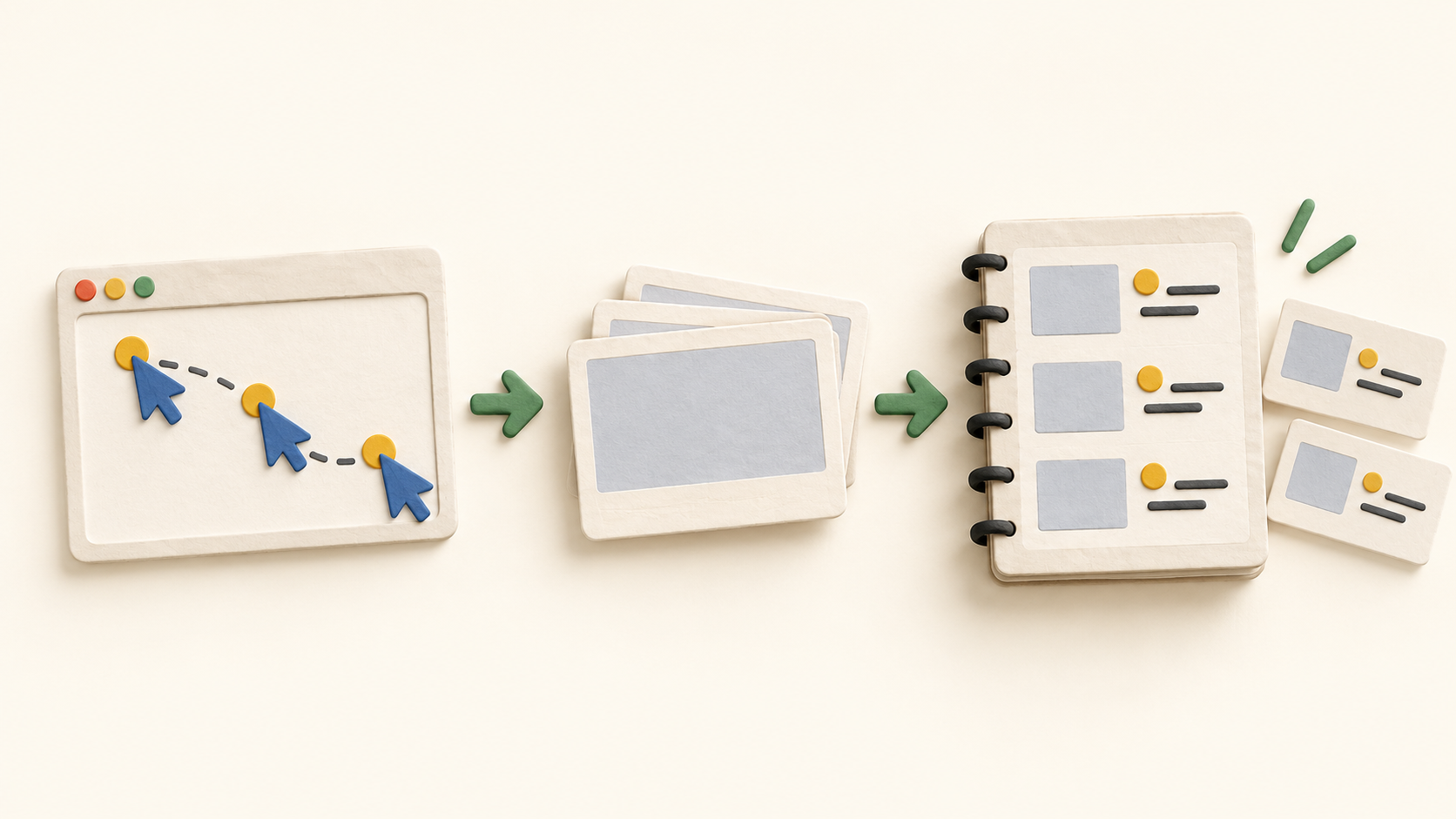
For a browser procedure, install the Chrome extension, start a recording, perform the task and stop capture. Dubble processes the result into a guide that can then be edited or shared. Start with a fictional workflow so the first capture contains no live customer details.
After recording, an editor can refine descriptions, add or remove text, replace screenshots and select another frame from a recording. This matters when a click sequence needs clearer context or a screenshot caught the wrong state.
The screenshot editor can annotate, crop and redact images. A redaction applied to a still screenshot does not hide the same content in an accompanying video; use the recording Blur control before capturing sensitive information and inspect both outputs before sharing.
Onscreen controls can pause capture while navigating through irrelevant or sensitive screens, resume it for the next step, or restart a recording. A sensible practice is to pause before opening a page that may expose data, blur it, and then resume.
A guide link can have adjustable visibility, with a workspace minimum privacy level. Before sending a guide outside the team, test its link with a separate viewer role and check the screenshots and any recording for information that should stay private.
Guides can be copied as rich HTML or Markdown, exported to PDF, or embedded where raw HTML is accepted. An embed reflects later edits automatically; a copied or exported file should be checked again after the guide changes.
Collections can organize several guides for readers. Publishing a collection does not make private or team-only guides inside it public, so test both the collection link and an individual guide link before relying on the result.
For work outside the browser, Dubble has a Mac desktop beta that can capture across native and web apps. Confirm whether that beta covers the team’s operating systems and applications before planning a desktop-wide rollout.
Understand the offer
Pricing and getting started
The Free plan lists unlimited guides, image editing and redaction, pre-capture blur, sharing and unlimited private viewers. The viewed Pro price is USD $18 per month when billed annually; monthly billing is selectable, so confirm that quote and the tax-inclusive total before purchasing.
Pro includes three creators in the viewed annual-billing display, with additional creators shown at USD $6 per month each. Video/audio recording, collaborator invites and watermark-free media are Pro features. Estimate costs from the people who will create or edit guides, rather than the number who only view them.
The Mac desktop capture app is a Pro beta. Enterprise is contact-led and advertises multiple workspaces, SAML SSO, user administration and advanced integrations, while the detailed comparison marks some advanced items as coming soon. Confirm the exact availability and contract before depending on those rights.
The site offers a 14-day Pro trial. The Help center says new signups and workspaces start in that trial, then move to Free if no upgrade is purchased, with Pro-only features paused. An upgrade during trial ends it immediately; test which guides remain usable on Free before building a large library around video or creator roles.
If a paid Pro subscription is cancelled, the Help center says the workspace returns to Free at the end of the billing cycle and Creator, Editor and Admin users become Viewers. Plan a handoff for guide ownership and exports before changing the subscription.
Look a little closer
Before you choose
Record one non-sensitive browser task, edit the wording and screenshots, then give a colleague a view-only link. Check whether the generated steps tell the task clearly and whether the viewer sees the intended guide without extra workspace access.
Run a separate privacy check on still screenshots and any video. Use pre-capture blur or pause when sensitive content may appear; screenshot redaction alone does not fix a video. Test a public collection against individual guide permissions before sharing a set of instructions broadly.
Choose the plan from the capture surface and creator workflow: Free for basic browser guides, Pro for video, more creators and the Mac beta, or a verified Enterprise quote for multi-workspace administration. Recheck the annual-versus-monthly price and what happens after the Pro trial ends.
10 distinct sources behind this profile. Research observed Oct 26, 2026. Features and offers can change.
View sources and research →
