

Find your fit
Who it is for
Support and product teams can use a public knowledge base for self-service and release guidance. Choose a category structure that matches real questions before migrating a large article set.
Internal teams can hold process guidance in private projects with reader accounts. Map roles, SSO and project boundaries before placing confidential information in the portal.
The work it supports
Core capabilities
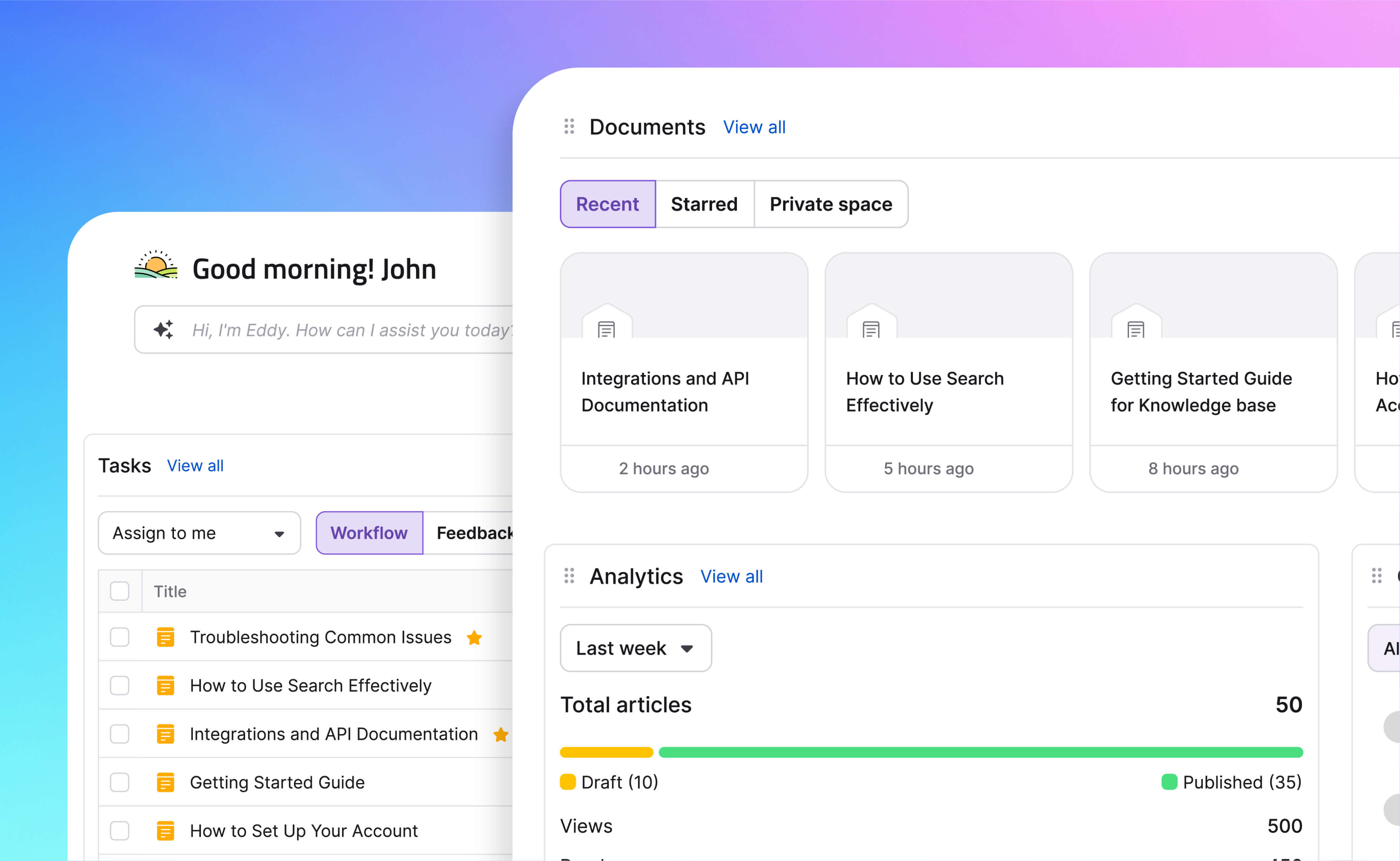
Create articles and group them into categories for a branded reader site. Test authoring, navigation and the published view with a representative help topic before scaling.
Search can surface articles, categories and attachments, with filters for larger workspaces. Try common reader wording and no-result queries before assuming search will resolve support requests.
Teams can set review stages and assign users or groups to workflow stages before publication. Configure the actual reviewer route and verify who can publish at each stage.
Understand the offer
Pricing and getting started
The current vendor pricing page uses a tailored quote rather than a flat public rate. Ask for the precise workspaces, editors, readers, languages, security needs and AI usage in writing.
A new project includes a 14-day trial, with a subscription required afterward. Pilot public and private access, search and article review before moving operational guidance in.
Look a little closer
Before you choose
Search analytics can show unanswered and bounced queries. Use those signals to improve content, while checking actual support outcomes before treating a search click as a solved question.
Use a small test article to confirm publication and search visibility under your configured roles. A draft is not available to outside readers until published.
Before relying on revision history for important guidance, test how a draft becomes a published update and whether you can compare and restore the version you need.
If you expect readers to use Ask Eddy AI answers, ask how many monthly question credits your quote includes. Document360 counts one credit for each question; when the limit is reached, the Ask Eddy button is inactive until more credits are added or the month renews. Credits cannot be purchased during a trial. Test representative queries and the non-AI search path before treating AI answers as a core support channel.
If offline handoff matters, confirm your Document360 quote includes WebHelp export and open a representative downloaded package without internet. Its HTML reader has navigation and search; select Include media files so images do not depend on hosted URLs. The current guide lists attachments, private notes and conditional content as omitted, while embedded videos and external links still need connectivity. Keep any required files by a separate route. Download and retain each ZIP before another export replaces the prior available file; use the standard project ZIP for later Document360 re-import.
If one Document360 project must hold both public help and restricted guidance, ask about Mixed reader access in the quoted plan. Its docs say workspaces or languages can be Public or Private: public sections need no login, while private sections require one. Published-article reader controls are available only for Private or Mixed projects and are inactive when the whole project is Public. Map each workspace and article exception, then check sample pages as a signed-out visitor and a restricted reader before placing sensitive material on the site.
Before replacing a reused image or other file in Document360 Drive, save the original outside Document360 and note where it appears. Replace accepts the same file type, keeps the filename and CDN URL, and updates linked articles and pages, potentially taking up to one hour; the old file cannot be recovered from Drive version history or the Recycle Bin. A Step by step guide, interactive demo or recorded video using the image must be republished to show the replacement. Pilot with a disposable file before changing a shared asset.
Before changing a published Document360 article URL, check its title, slug and inbound links separately. Renaming the title does not update the slug. If you change the slug, select the optional redirect from the old URL or existing links can return 404. For a multilingual knowledge base, create a redirect for each language path; a default-language rule does not cover translations. Rehearse with a disposable article and test bookmarked links in each language before restructuring live guidance.
For articles in Document360's Advanced WYSIWYG editor, restoring an older revision with Copy to draft replaces the active draft for collaborators. If a draft exists, Document360 saves it as a System Backup first; without an active draft, it creates one from the selected version without a backup. The current published article stays live until the new draft is published. Tell contributors before restoring shared work, and verify the draft and any System Backup before publication; Markdown articles use a separate Fork flow.
Before retiring a Document360 article, choose the outcome the team needs. Deprecate leaves it visible to readers with a warning tag. Archive removes it from the knowledge base site, keeps its revision history outside the 30-day Recycle bin, and can be undone; Delete puts the article in that bin for 30 days unless someone permanently deletes it sooner. Both Archive and Delete affect replicated articles, and Archive can break internal links. Check who has archive and restore permissions, then try the reader URL, linked copies and recovery path with a disposable article before retiring live guidance.
Before relying on Document360 reader feedback, enable the feature on the intended knowledge base and assign an owner. In Feedback manager, Add note stays internal; Add note & notify reader is available only when that reader requested updates and supplied an email. Complete can return to Open, while Closed locks the item. Choose Close feedback or Close & notify reader deliberately: the latter can notify a reader even with no closing text. Rehearse with fictional feedback and verify the reader-facing result before using it for real concerns.
Document360's All articles CSV is an inventory, not a content archive: it lists titles, categories, status, dates and URLs without article bodies. Its project export instead creates a ZIP for all or selected categories. Single-language output uses Markdown or HTML by editor type; multiple-language output uses JSON. Related media files require the Include media files option. For a migration or backup check, have an authorized user choose All dates and representative workspaces and languages, download a fictional project ZIP, inspect its articles and media, then test the intended import path. Confirm export rights for the proposed plan and role before relying on either route.
If a Document360 article is restored from the Recycle bin but its reader URL still returns 404, check whether its parent category was deleted too. Document360 says the article cannot resolve its path until that category is restored. Restore the parent category, review whether the article remains draft or unpublished, publish it if needed, then open the public URL and confirm its section. A recent publish can briefly show a cached 404, so allow for that delay before treating it as a persistent configuration problem. Rehearse with a disposable article and category, checking both recovery steps and the reader view before depending on this route for live guidance.
Document360's review reminders turn a published article Stale in the authoring portal when its due date arrives, but the article stays live on the reader site and readers receive no stale notice. Draft-only articles do not enter Stale until publication; an article-level reminder overrides the project default. Confirm the quoted plan and who can set project defaults, then use a hypothetical already-published article to map what a reviewer would see against the signed-out reader view. Assign who marks an item reviewed and who separately retires guidance that must stop being read; do not assume the reminder itself removes old content.
Document360 private links can give an external reviewer access to a draft or restricted article without a reader account, and a new link defaults to Never expires. For a fictional unpublished policy review, check who has Editor or Share link permission, set a dated expiry, and use the All articles Shared link filter to inventory active links. Changing an expiry keeps the same URL; Stop sharing invalidates it immediately, while an expired link needs a new URL. Check the end-of-review link state and remember that restoring a deleted article can make a still-valid link work again. Confirm the quoted plan and actual role settings before relying on this route; each link opens only its specific article.
27 distinct sources behind this profile. Research observed Oct 26, 2026. Features and offers can change.
View sources and research →
