Find your fit
Who it is for
A solo consultant can create a shareable one-to-one booking page with duration, location and availability rather than negotiating each meeting time over email. Calendar connections are worth testing before sending the link to real clients.
A team running classes or shared sales calls can use group capacity or round-robin host rotation. These workflows require the appropriate paid plan and a careful check of staff availability, appointment capacity and notification settings.
The work it supports
Core capabilities
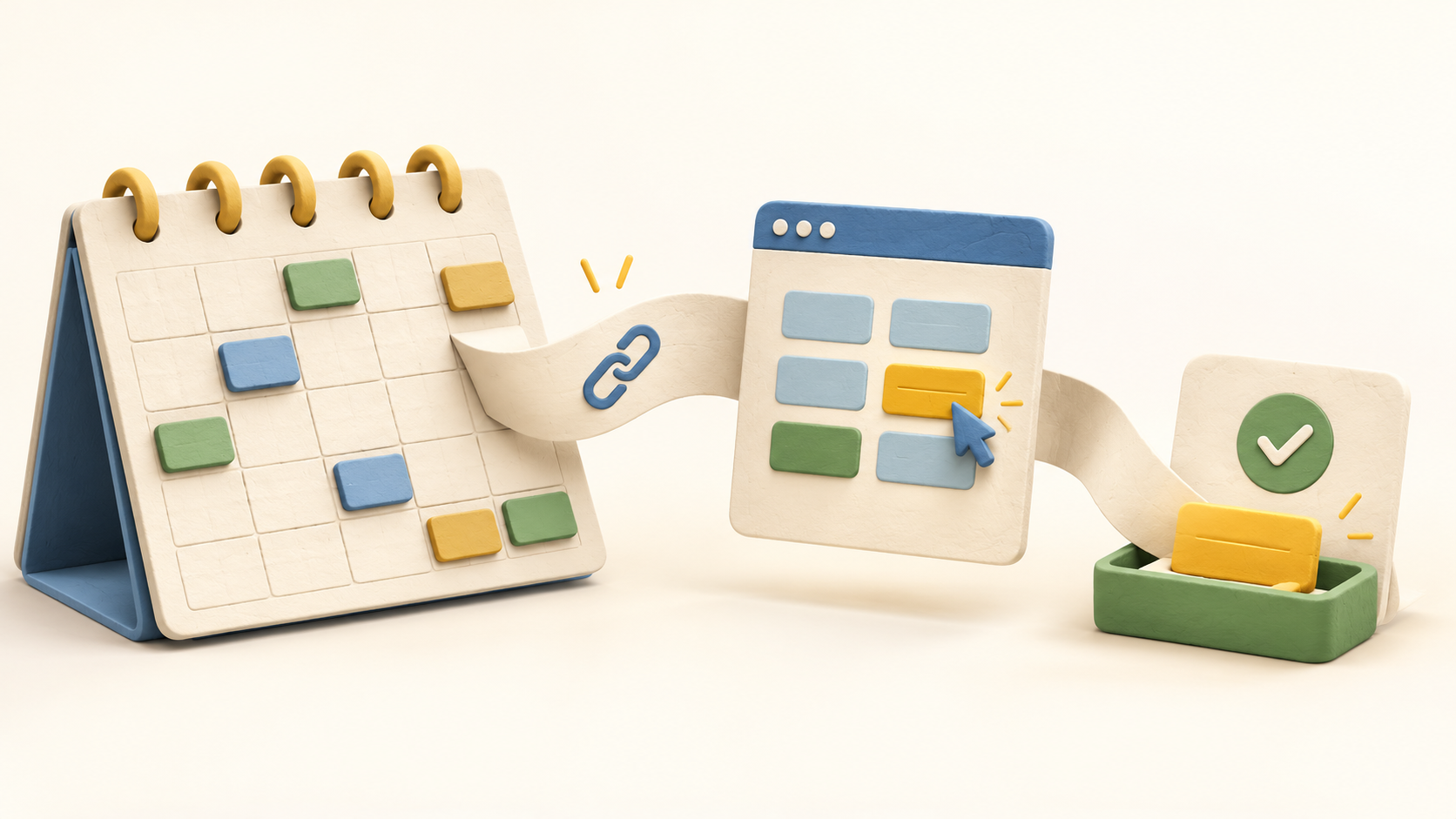
Create a scheduling page for a service or meeting and set the event name, duration, location, available times and any invitee questions. Share its link by email or on the website so the invitee selects a slot.
Connect a Google or Office 365 calendar to reflect availability and add meetings. The site describes time-zone handling; test a booking across the organizer’s and invitee’s zones before relying on it for international meetings.
Embed the booking flow into an existing site using an inline or popup widget. Try both mobile and desktop widths to make sure visitors can identify the event and complete the booking.
For a class or other shared session, configure a group booking with a maximum number of spots per time slot. Consider whether to show remaining spots publicly and confirm that the capacity matches the actual venue or online session.
For shared calls, select team members and their availability for a round-robin event. The host rotates as invitees choose slots, so verify assignment and calendar availability with fictional bookings before publishing the link.
The booking calendar distinguishes confirmed appointments from ones waiting for payment or pending manual approval. Treat those states separately when communicating with a customer; an initiated booking is not necessarily a confirmed one.
Organizers can open a booking to reschedule or cancel it and record a reason. Check the resulting calendar and notification state for a fictional appointment before using the workflow with customers.
For a paid service, connect an eligible gateway account and set the event price. Current documentation says confirmation follows a successful gateway response and an unpaid slot is released after fifteen minutes; verify the gateway’s regional and currency rights first.
A cancellation does not trigger an automatic payment refund according to the payment guide. Document who handles refunds and reconcile the gateway transaction with the booking status.
The organizer can use a personalized link for direct booking or embed the same scheduling flow on the business website. Choose one path for a pilot and review the invitee questions and booking confirmation before adding more event types.
Understand the offer
Pricing and getting started
The pricing page advertises a Free plan for one-to-one appointments, Professional for group and round-robin work, Business for broader team controls, and contact-sales Enterprise options. Plan rights should be matched to the intended booking flow.
The page advertises a seven-day trial for paid plans and says gateway verification is needed to access full trial features. Confirm current sign-up, card and billing terms before starting a trial.
Event-type limits conflict within the current pricing page: the Professional card says unlimited while its comparison grid says ten. Ask DaySchedule to confirm the selected tier’s current limit in writing; do not size a rollout from either disputed cell alone.
Email campaigns and routing forms are marked coming soon in the detailed comparison section. SMS reminder setup also differs by country, and paid-booking gateways depend on merchant-account and currency support. Check those rights before purchasing a plan.
Look a little closer
Before you choose
Walk one fictional booking from the public link through the organizer calendar. Check the displayed time zone, event location, invitee questions and confirmation before sharing a link with clients.
For paid appointments, check what happens when payment is abandoned and when a confirmed booking is later canceled. The docs describe a fifteen-minute unpaid-slot release and no automatic cancellation refund; assign the manual follow-up.
If several staff members or attendees share an event, rehearse group capacity or round-robin assignment with fictional bookings. Confirm the actual plan entitlement because the pricing page’s event-type counts disagree.
Keep a short list of needed features and their availability: a basic page, group or round-robin scheduling, payments, SMS and any future campaign or routing functions. Confirm the chosen plan and connected providers rather than treating the marketing card as a complete deployment specification.
10 distinct sources behind this profile. Research observed Oct 27, 2026. Features and offers can change.
View sources and research →
