Find your fit
Who it is for
An individual or freelancer who already uses a cloud folder can add client-side encryption to selected documents without moving to a different storage provider. Try a small non-sensitive folder first and verify the provider fully syncs the encrypted vault directory.
Someone who wants the same vault on desktop and mobile should compare platform support and write rights. The desktop app is offered for Windows, macOS and Linux, while the free iOS and Android editions are read-only under the viewed terms.
A larger team needing centrally managed access should compare Cryptomator Hub separately. The individual vault can be shared as files, but Hub administration and its commercial terms are not features of this listing.
The work it supports
Core capabilities
Create a named vault in a local directory or in a folder already synchronized by your cloud provider. The creation flow asks for a vault password; the user can also capture a recovery key before placing real files inside.
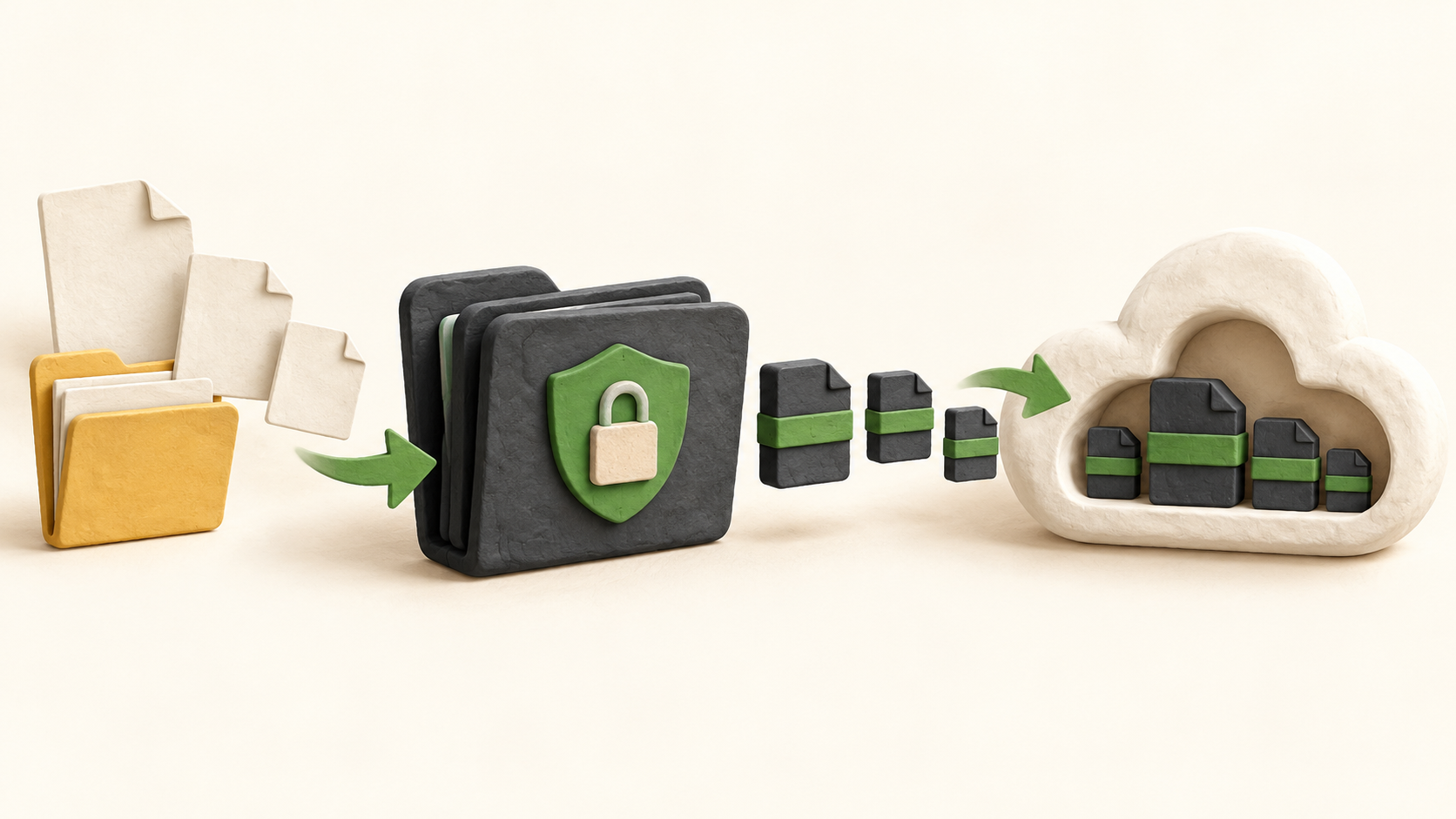
Unlock the vault to work with decrypted files through the desktop volume, then lock it when finished. Cryptomator encrypts each file and obscures names and folder paths in the vault storage location.
Desktop cloud use depends on the provider’s own sync software. Choose the storage service, configure its local folder and test cross-device completeness; Cryptomator’s vault creation does not start or manage that provider.
A recovery key can reset a forgotten vault password, but Cryptomator cannot reset it for the user. Keep the recovery key as carefully as a password and verify it exists before depending on the vault for irreplaceable files.
Changing the vault password changes key wrapping, not every encrypted file. If an older weak-password key file remains recoverable in cloud history, the guide points to creating a new vault and moving files rather than treating a password change as complete re-encryption.
Cloud sync conflicts may appear as additional files with conflict suffixes. Compare both versions before deleting either; Cryptomator exposes the conflict for review rather than choosing the correct contents on the user’s behalf.
Cryptomator is not a backup product. Back up the complete encrypted vault, including its configuration, and test opening a restored copy; a single-file restore can fail when the file has been renamed or moved since backup.
Encryption has a defined boundary. File sizes and timestamps may be observable, and an editor that writes clear temporary or backup copies outside the vault can expose them; test the actual document apps and backup tools in use.
Understand the offer
Pricing and getting started
The viewed individual pricing page lists the desktop app as free and open source with full desktop access. Optional upgrades and third-party cloud storage have separate terms.
Free iOS and Android use is read-only under the current page. Full mobile rights are separate by platform, and prices may vary by region and store; check the exact checkout terms for each intended device.
Look a little closer
Before you choose
Use a fictional or non-sensitive file to check the full path: create vault, add file, lock, let the provider sync, open on a second device, and inspect whether the cloud copy contains only encrypted content. Do not infer sync completion from Cryptomator alone.
Record the vault password and recovery key in a suitable separate location. Practice restoration from a complete vault backup before migrating important work; a changed password and an old backup may require the password valid at the backup time.
If two devices may edit the same files, create a harmless conflict and confirm how the provider and Cryptomator present both versions. Check any editor or backup tool for clear temporary copies and decide whether visible file metadata is acceptable.
Compare the individual desktop and mobile rights with the separate Hub product if team access matters. Check current region-specific mobile checkout and cloud storage costs instead of assuming every device or managed-team feature is included.
11 distinct sources behind this profile. Research observed Oct 27, 2026. Features and offers can change.
View sources and research →
