
Find your fit
Who it is for
ClickUp positions the product for personal to-do lists as well as shared projects and work across teams. The choice of plan depends on which planning views, reporting tools and other advanced features the team needs.
The work it supports
Core capabilities
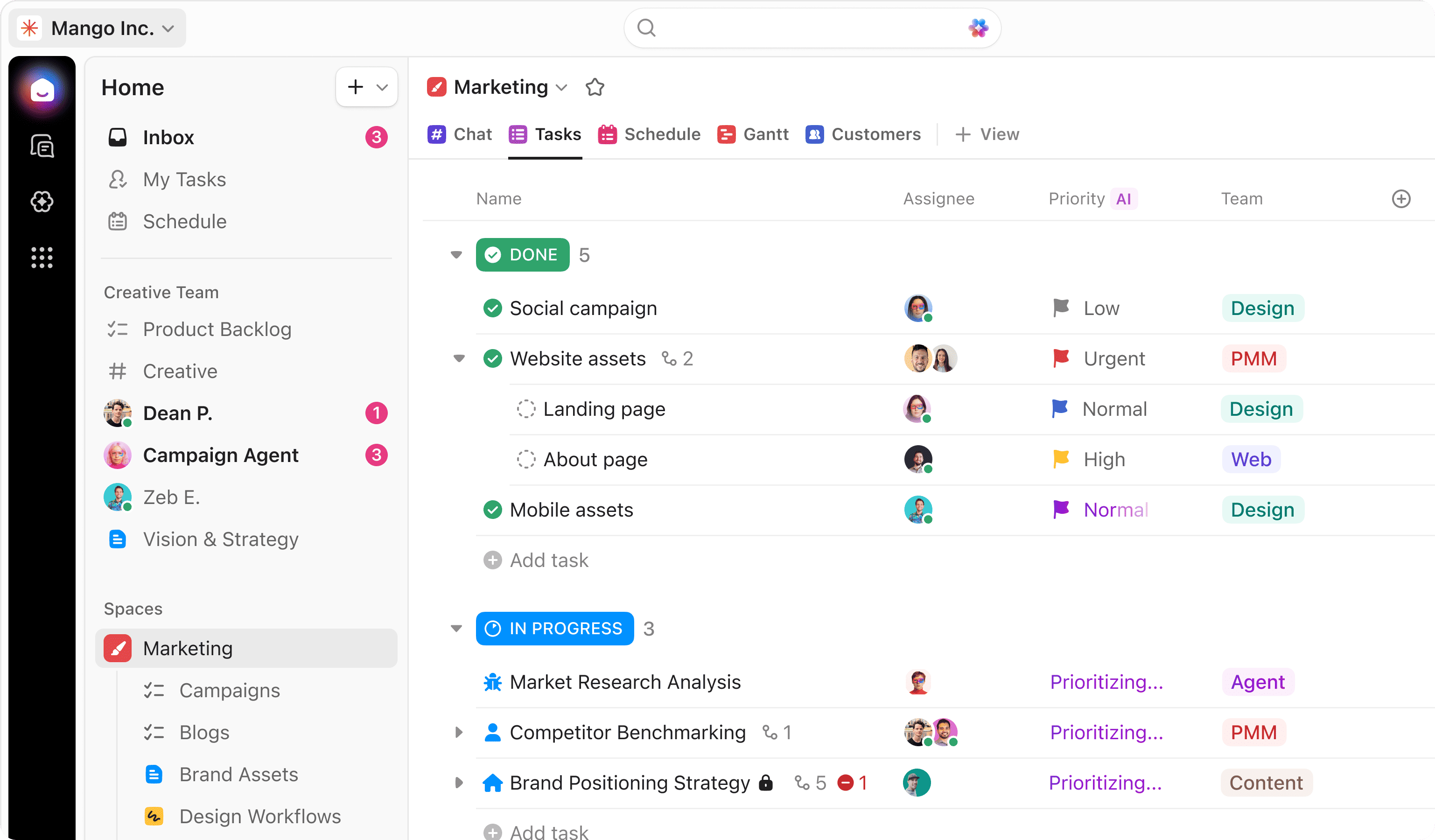
Create and organize tasks, break larger work into subtasks and checklists, and assign a task to more than one person. ClickUp’s basic task offer is free with unlimited tasks and users; advanced task features can require an upgrade.
Plan project work with Gantt charts. The Unlimited plan includes unlimited Gantt use, while the current help table gives Free Forever a 60-use allowance. This paid planning entitlement should not be confused with the free plan’s basic task allowance.
Build reporting dashboards from charts, tables and other cards. Business includes unlimited dashboards with advanced cards. The vendor presents dashboards as a paid reporting tool; check the access offered by the plan you are considering.
ClickUp Docs are available on every plan. An authorized user can highlight text in a Doc or wiki and create a task, selecting its location and completing required Custom Fields; a Doc kept in Docs Hub needs a task location chosen. Docs and tasks can also be connected with Relationships. In a fictional project-plan handoff, check where the new task lands and whether the intended collaborators can open both items.
Understand the offer
Pricing and getting started
Free Forever offers basic tasks with 60 MB of file storage. Paid upgrades apply to the entire workspace, including all members; each additional workspace needs its own upgrade. Added paid users are billed proportionally for the remainder of the billing cycle.
Look a little closer
Before you choose
Unlimited tasks does not make every feature unlimited. Planning views have their own allowances, and AI plans use monthly credit allowances for features such as Super Agents and AI automations. Check the specific view, paid plan and AI usage terms your team will rely on.
Before sharing a ClickUp private view as a team or client handoff, check the difference between the view and access to its underlying location. ClickUp says sharing the view with people in a Workspace grants only the view, and only people who already have access to its location can be selected. A public link is view-only; private tasks in shared items stay hidden, and link viewers cannot receive individual permissions. ClickUp marks private-view public-link sharing as early access and says feature availability varies by plan and role. Rehearse with fictional tasks and the intended viewer roles before sending a live link or treating it as a complete project handoff.
ClickUp says a task from a private Space becomes visible to everyone who can access a public Space when Tasks in Multiple Lists adds it there. The same task syncs across its Lists, with edits and comments displayed in each; adding it to a second List should not be treated as making a private copy. This ClickApp's availability and limits vary by plan and user role. Before using a public project List to coordinate confidential work, have authorized staff test a fictional task with the intended viewer roles, inspect both Lists and comments, and decide whether that task belongs in the public Space.
ClickUp Forms are public to anyone with the link by default. On Enterprise, a Workspace owner or admin can enable Account Authenticated Forms for the entire Workspace, including new and existing Forms. The Form URL can still be shared, but only people who have joined that Workspace can view and submit after signing in; others are blocked. Before using a Form for internal intake, ask an authorized admin to check the setting and rehearse a harmless Form link with a joined and an outside viewer, because the change affects every Form in the Workspace.
ClickUp's Automations ClickApp has Workspace-level limits on active rules and monthly Actions that vary by plan. An admin or owner must activate it; each triggered Automation counts as a use, and exceeding the monthly Action limit pauses Workspace Automations for that month. The allowance resets on the first of the month Pacific Time, and owner/admin usage alerts help monitor it. Before relying on a time-sensitive handoff, have an authorized user try a harmless rule and check Manage Automations > Usage; ClickUp says the display updates every ten uses. Verify your plan and role, and separately check AI credit allowances if the workflow uses AI features.
ClickUp recurring tasks can reuse one task or create a new one each time. With Create new task off, ClickUp keeps current and completed activity, subtasks, checklists and assigned comments on the same task; turning it on duplicates a task, with choices for which fields to carry. Tracked time does not carry to a newly created recurring task. For recurring client or compliance work, decide whether you need a distinct record for each occurrence and test a fictional task through two cycles, including time records and selected fields, before treating recurrence as a history of completed work. Confirm current plan and role access.
ClickUp's dependency links alone do not establish an automatic schedule. With the Reschedule Dependencies ClickApp enabled for a Space, changing a blocking task's start or due date can move waiting tasks earlier or later. ClickUp requires a due date on the blocker and a start date on the blocked task; it reschedules closed tasks by default unless Trigger even when dependencies are closed is switched off. Before using dates for a handoff, have an authorized owner rehearse a fictional two-task chain with those dates, plus one closed task, and check the Space setting and resulting dates. Confirm plan and role rights.
ClickUp task templates are shared with all Workspace members and admins by default, though sharing settings can be edited. Most task properties import by default; custom import options can include assignees, attachments, comments, checklists and dependencies, while Formula Fields are excluded. Applying a template to a task cannot be undone. Before making one from live client work, use a fictional task to inspect sharing and import choices, then apply it to a second sample task.
For a ClickUp handoff, separate the task CSV from its linked files and Docs. ClickUp can export task data from selected Spaces, Folders, Subfolders or Lists; the CSV includes task fields, comments and attachment names or links. Download needed attachment files separately. Docs can be exported as PDF, HTML or Markdown, but ClickUp says a bulk Workspace Docs export is not available. Export access and limits vary by plan and role. Have an authorized user rehearse with a small fictional hierarchy, compare parent and subtask IDs, comments and attachment links, then check the downloaded files and Docs before treating a project handoff as complete.
For ClickUp task cleanup, treat Archive and Delete as different retention choices. Archiving removes a task from normal views but keeps it searchable; attached files can be recovered by unarchiving. Deleting sends the task to Trash for 30 days and removes it from every List it appears in, while ClickUp says the task's time entries are permanently deleted at deletion. Before adopting a cleanup rule, have an authorized user review a fictional completed task with an attachment and time entry, confirm the archive and restore route, and decide which records must be retained separately. No task, attachment or time entry was changed here.
Before inviting a client or contractor into a paid ClickUp Workspace, separate view-only access from permission-controlled collaboration. ClickUp says outside guests can view without a fee, but granting comment or edit access changes the guest type; if no included permission-controlled guest seat remains, that access costs the member subscription. People using the organisation's email domain or SSO cannot be guests, and affected existing permission-controlled guests become billed limited members. Use fictional external reviewer, external editor and internal teammate roles to check the Workspace's current seat allowance, sharing permissions and quote before inviting real people. No invitation or billing action was performed.
ClickUp's recurring tasks stop generating when their Space, Folder, Subfolder or List is archived, according to its Help guide. This matters if a team archives a completed client project but still expects a monthly follow-up. Map a fictional task's next scheduled instance before and after its home container is archived, then check the task's location and recurrence settings after any reorganization. Recurrence is available on every plan, but showing all future instances requires a paid plan; confirm role access and the actual schedule before relying on the workflow.
Before removing a ClickUp Workspace member, use a fictional handoff to inventory their assigned tasks, including Closed work, unshared private items and Spaces, and Automations they created. ClickUp keeps task and comment assignments with a Deactivated label until reassigned, while creator Automations stay active. Unshared private items become inaccessible even if the person is re-invited, and privately owned Folders, Lists and tasks are removed when they leave. An inaccessible private Space has a separate owner-transfer path. Have an owner or admin verify access and reassign needed work before removal; check the selected Workspace's roles and automation behavior rather than assuming every private item or responsibility transfers.
Before putting an OKR in ClickUp Goals, use a fictional sensitive metric to check visibility from an ordinary Workspace member and an invited guest. ClickUp says Goals and Goal Folders are public to the Workspace by default; turning off Workspace sharing makes one private, and a copied private link works only for people or Teams already permitted. A guest with Edit permission can change Targets but cannot create or delete Goals, and adding a task or List to a Target still requires access to that item. Confirm Goal sharing separately from linked work. Free Forever has 100 Goal uses; Goal Folders require Business or higher.
24 distinct sources behind this profile. Research observed Oct 27, 2026. Features and offers can change.
View sources and research →
