

Find your fit
Who it is for
Individuals can use Calendly for a simple appointment schedule. Small teams can add more scheduling options, while teams that distribute meetings or need central administration can look at the team plans.
The work it supports
Core capabilities
Share a booking link by email, on your website, or through social media. Invitees choose a time and Calendly books the meeting. The Free plan supports one event type, rather than a separate booking setup for every service you offer.
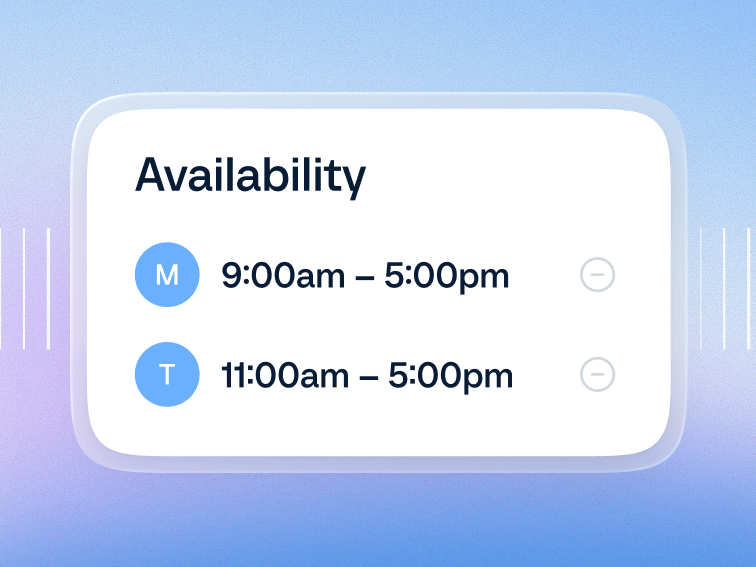
Set preferred meeting hours, daily limits, and buffers between appointments. Calendar capacity depends on the plan: Free connects one calendar; Standard can check up to six calendars for conflicts.
Standard includes automated reminders and follow-ups. Calendly describes pre- and post-meeting email and text workflows for invitees, hosts, and teammates, with workflows reusable across meeting types.
Choose the event type before comparing plans: one-on-one books one host with one invitee; Group admits several invitees to one host's slot; Collective requires all selected hosts to be free; Round Robin assigns a one-on-one booking among available team members. Current Help places Group and Collective on Standard or higher and Round Robin in the Teams lineup or Enterprise. Check the event types shown in your account.
Share the link that matches the invitee's choice: a landing page shows active event types, while an event-type link opens one booking setup. Calendly combines available hours, connected-calendar busy times and event settings when showing slots, then adds new meetings to a connected calendar. Preview each link with a fictional invitee and confirm which calendar is checked and receives the booking.
Refine a booking page beyond office hours: set slot increments, limits and a minimum notice period, then choose how far ahead the event can be booked. Calendly detects host and invitee time zones by default and recommends locking the invitee zone for in-person events. A hidden event still works through its direct link, so review both link distribution and the visible slot grid.
For team booking, compare Round Robin's maximize-availability setting with equal distribution. Calendly says the latter can show fewer slots while evening out assignments. It also says a rescheduled Round Robin meeting reassigns under the distribution rules by default unless you choose to keep its original host. Rehearse both settings with sample schedules before sending the team link.
Routing is a separate team workflow from sharing a basic event link. Calendly describes qualifying form responses and sending leads to a suitable calendar or team member, with Routing access limited to eligible plans and owner/admin roles in its Help. Owners can inspect a form's destination result and answers and export responses to CSV; large exports may be emailed later. Test your actual route and response access with fictional leads.
Use event-type invitee questions to gather only the details needed before a meeting. Calendly allows up to ten custom questions per event type and can require an answer before booking. Those questions are available across plans, but Calendly says only radio-button and dropdown answers trigger Routing Form logic. Pilot the form separately from the paid Routing entitlement before relying on an answer to assign a meeting.
Understand the offer
Pricing and getting started
There is an ongoing Free plan with one event type and one calendar connection. Paid options include Standard, Standard Plus, Teams, Teams Plus, and Enterprise. Monthly and annual billing are offered; seats are for hosts connecting calendars and running meetings, while invitees do not need a paid seat.
For paid appointments, Calendly's Stripe integration can require payment before a meeting is booked on eligible paid plans. Personal event types use the host's connected Stripe account; shared and team events use the organization's owner account. Check who receives funds, whether Stripe is live, and the event's displayed price and tax terms before offering a paid link. Calendly says it does not calculate or collect VAT or sales tax.
Look a little closer
Before you choose
Check the distinction between scheduling and AI meeting tools when choosing a plan. Plus plans add Notetaker and Callie; Callie is marked beta, and both tools are currently available only in English. Automated reminders are a paid Standard capability, rather than a Free-plan entitlement.
Before distributing a booking link, preview the event type and use Calendly's Troubleshoot Tool on an expected open time. Its codes distinguish busy connected-calendar events or lost calendar access from buffers, notice limits and another Calendly booking. Calendly says a meeting it created can keep blocking time even when its connected-calendar event is marked Free. Confirm the cause and the account's available remedy with a fictional slot for each intended host; do not assume changing an external calendar alone fixes availability.
Before using Calendly's post-meeting emails, compare fictional attended and no-show bookings on the intended plan. The No Show control appears only after the scheduled start. Calendly says a marked invitee does not receive general follow-up emails, but a Workflow explicitly targeting no-shows can still email them; Standard or higher Automations can invite them to rebook. For Group events, mark each invitee individually, then inspect the no-show status in Meetings CSV and the chosen Workflow recipients. Check marking time and both recipient paths before real follow-ups.
If a cancellation cutoff matters, read the booking experience as the invitee would. Calendly's paid-plan policy field displays your terms, while a separate setting puts cancel and reschedule links in notifications. Its Help explicitly says the displayed policy does not enforce a cutoff. Put any needed operational follow-up outside that text and confirm the link behavior in the intended plan.
For a scheduling review, Calendly's paid analytics can show created, completed, rescheduled and canceled events, with filters by user, team or event type. Its Help gives owners and admins up to one year of in-app data and Event Data or Employee Data CSV exports; Routing Form analytics are separately Teams-or-higher. Inspect a sample export and the role's access before treating this as a complete long-term archive.
Before redirecting invitees after booking, check the plan and destination URL with a fictional booking. Calendly lists the redirect for eligible paid plans. If you enable Pass event details, Calendly can append the invitee's name and email, event details, and custom question answers to that URL. Confirm what the destination receives, and leave detail passing off if those fields should stay out of the other site.
Before changing meeting spacing in Calendly, remember that editing an event type's buffer affects new bookings; already scheduled meetings keep their old buffers until you edit them in Meetings with Show buffers on. Stacked before-and-after buffers can make an apparently free slot unavailable and can affect Round Robin or Collective host availability. Check a synthetic booked meeting and preview open slots for each intended host before sharing the revised link.
Before sharing a Calendly link for a one-time conversation, consider a single-use link based on an existing event type. Calendly says each link is created individually and expires after one booking; its Developer FAQ says an unused single-use link expires after 90 days. The Help page lists all plans, while qualifying access by account and add-ons. Sending a link from Calendly through connected Gmail or Outlook, with an optional reminder if the invitee has not booked, is a paid-plan option. Preview the intended link with a fictional invitee and plan to issue a fresh one if it expires before booking.
If you need different Calendly event types to write bookings to different calendars, check this before adding more connections. Calendly says one user's calendar connections apply to every event type: selected connected calendars can be checked for conflicts, but new bookings go to one chosen primary calendar, not separate destinations per event type. Calendly suggests another organization user when separate booking calendars are needed. Confirm the plan and seats, then preview two fictional event types and check their conflict settings and booking destination.
On desktop, choose the scope before changing a Calendly Group booking. The cancellation guide says Cancel removes the meeting for all invitees; Remove invitee, beside one person's name, removes only that invitee. The rescheduling guide handles Group invitees one at a time through Reschedule invitee. With fictional invitees, rehearse the intended action and check the remaining roster and who receives changed details before using it for a live group. Confirm the account's Group-event entitlement and the acting user's role, and verify actual notifications separately.
Calendly Meeting Polls collect votes on possible times; voting alone does not book the meeting. The current Help says anyone with the link can vote without a Calendly account, with up to 40 proposed times and 40 participants. After reviewing votes, the organizer must select a time and Book Meeting before Calendly sends calendar invites. Polls do not support Workflows such as reminders or rescheduling. In a fictional two-voter check, compare the voting link with the final booked invitation and confirm the feature appears on the intended account; Calendly qualifies access by plan, account age and add-ons.
Calendly's One-off Meeting is a separate one-time tool from a single-use link based on an existing event type. The organizer can offer selected times, including slots outside usual availability or over non-Calendly events. With Reserve Times on, Calendly creates temporary placeholder blocks on host and co-host calendars; those slots also disappear from regular booking pages. Booking clears the placeholders and exhausts the link, though clearing may take a few minutes. Staff can clear all reserved slots manually before booking. One-off Meetings do not use Automations and cannot be rescheduled; moving one requires canceling it and creating a new meeting. For a fictional priority invitation, compare reserved and unreserved availability without sending a link, and check the selected plan, role and need to reschedule before choosing this route.
For a staff handoff, check the owner of a Calendly event type separately from its meeting host. Calendly's guide says transferring ownership of a personal or shared event type leaves the meeting host unchanged. These permissions are unavailable for team event types, and managed event type ownership cannot be transferred. The guide lists paid plans and warns that access may vary by plan, account age, add-ons and role. With two fictional staff members, verify the event type, owner, host and required view or edit access before relying on a transferred scheduling link.
27 distinct sources behind this profile. Research observed Oct 27, 2026. Features and offers can change.
View sources and research →
