

Find your fit
Who it is for
Marketing teams that send repeat email campaigns and need targeted follow-up can evaluate ActiveCampaign. Check contact volume and the selected plan's segmentation and automation allowances against the actual list and workflow.
Teams with different customer groups can create segments from contact and engagement data. Test the segment criteria against a known sample before scheduling any campaign.
The work it supports
Core capabilities
Build branded email campaigns with the drag-and-drop designer or AI assistance. Review copy, links and recipients before sending; confirm the selected plan's AI scope.
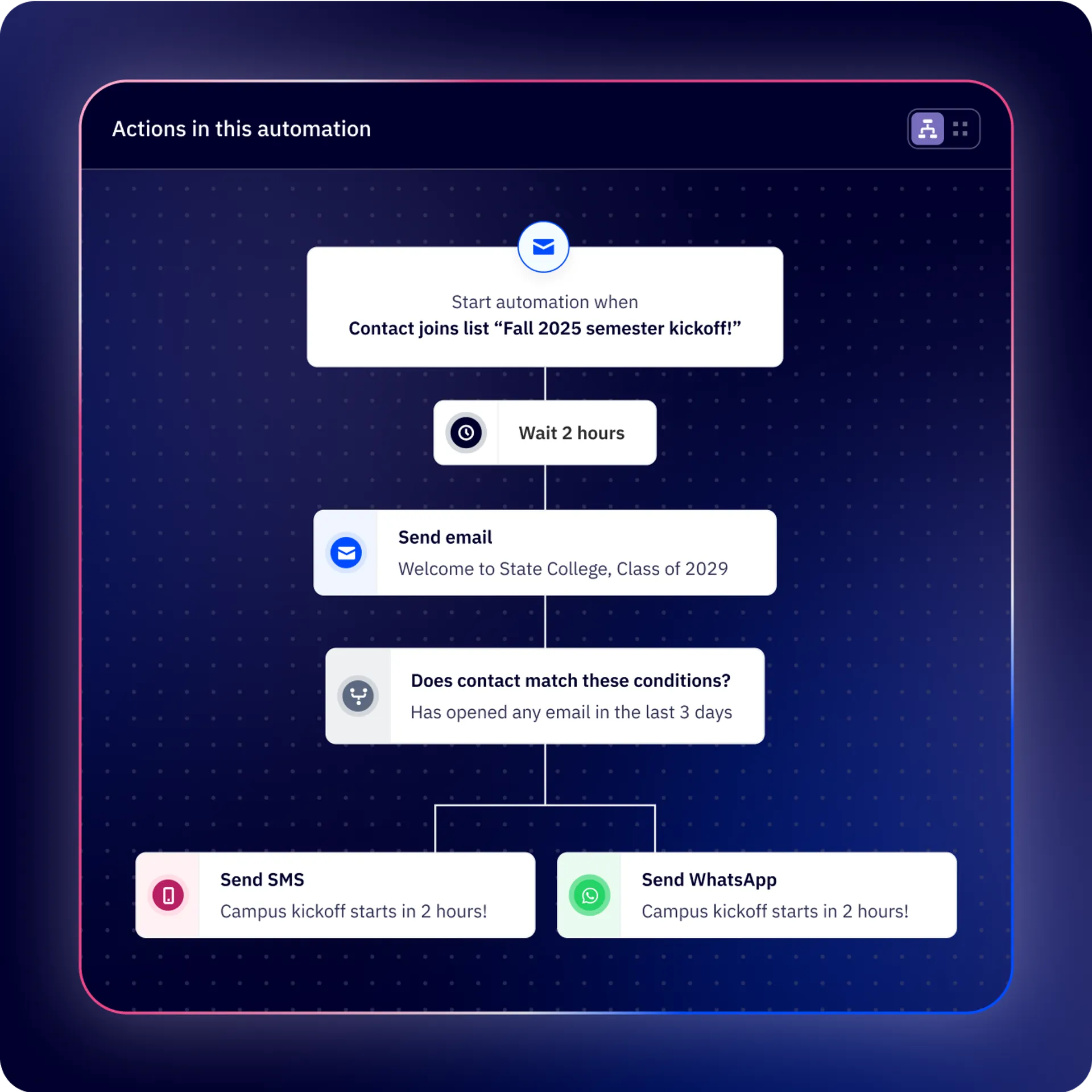
ActiveCampaign describes automations that adjust email frequency or content based on engagement. Starter's pricing card limits an automation to five actions, so test the intended branching against the paid tier before activation.
Create audience segments from contact and engagement data, then check how data enters the platform and whether a sample segment matches intended recipients. The current Starter card says segmentation is limited.
Understand the offer
Pricing and getting started
The email-marketing page advertises a 14-day free trial with all features and no card. Use it to inspect the workflow, then compare each tested segment and automation with the paid tier; trial access does not establish ongoing Starter entitlements.
Package pricing depends on contact volume and feature needs. Select the actual contact band and plan, then confirm the quoted currency, billing term and required channels before committing.
The current Starter comparison lists limited segmentation and five actions per automation. Higher tiers list broader segmentation and automation allowances; recheck today's plan table before moving an all-feature trial workflow into a paid subscription.
Look a little closer
Before you choose
Confirm permission and contact eligibility before sending. A segment definition or draft campaign does not prove that messages will reach the right people.
Test entry rules, branching, content and stopping conditions with a small contact sample before production. Starter's five-action limit may require a different plan for a longer workflow.
AI-generated campaign material is a draft. Review wording, links, audience and timing before a real send.
Before a historical CSV import, review Advanced Options with the account owner. Imported lists, tags or field values can enter Active automations, and the import has separate Trigger Automations and Trigger Webhooks controls. Set both for the intended recipient and integration effects, then verify the settings on a small authorized sample before the full batch. No contact import, automation execution, webhook or message send was tested here.
Before activating an ActiveCampaign automation with multiple entry triggers, test one opted-in sample contact that matches both. ActiveCampaign says the contact can enter through each trigger, and each run can reach Send Email, causing duplicate messages; re-entry after completion can resend too. In automation settings, 'A contact can enter this automation' > 'Only once' limits trigger-based entry, but that rule does not apply to contacts manually added. Check the setting and the sample contact's runs and received messages before enabling real customer follow-up.
Before shrinking an ActiveCampaign audience, compare Archive with permanent Delete. Archived contacts are read-only and leave the active contact count, with their history kept for up to one year. Manual restoration waits 30 days, but an active form submission can automatically move an archived contact back to Active; restored contacts count toward the active billing limit immediately. Deleting requires archiving first and then permanently removes the contact and associated data. Check retention needs, active forms and contact-count effects before acting on live records.
Before pausing a live ActiveCampaign automation, review the queue and the contacts already inside it. While Paused, contacts meeting a start condition wait to enter, while existing contacts can continue until a Wait, Wait until or Goal step; an elapsed Wait may release immediately on reactivation. A pause becomes Inactive after 30 consecutive days and discards queued entrants. When resuming, review the queue's deduplication and already-in-automation options; choose Inactive when new contacts should not queue. Test the intended path with an authorized sample before changing a live workflow.
For a missing ActiveCampaign automation email, use an authorized sample contact to inspect the Send Email action's Activity Log and View run path before editing the workflow. The action log records whether an action completed or failed; Waiting applies only to Wait and Jump To actions. Allow up to five minutes for a run to appear. Check whether the contact reached or skipped Send Email and whether list subscription, unsubscribe, bounce, unconfirmed status or an exclusion blocked sending. If the action succeeded, check the address and inbox or spam separately; log success alone does not prove inbox arrival. Save the needed evidence before deleting an action, because its log entries then become inaccessible.
Before using an automation's unsubscribe link, review its 'If a contact unsubscribes from an email' setting and the lists assigned by its triggers and actions. New automations with Send Email default to unsubscribing from all lists; you can select one or more lists, while list, form and campaign triggers and a reached 'Subscribe to list' action can affect the result. Contacts added manually can unsubscribe from all lists when associations come only from triggers, and contacts already in the automation keep the associations assigned when they entered. Check those paths with an authorized sample before relying on a list-specific outcome.
Before relying on an ActiveCampaign event-date reminder, inspect the chosen Wait action with three fictional contacts: a future date, an empty date and a date whose configured offset has already passed. ActiveCampaign says a custom date-field Wait can use the date itself or days before or after it; an empty field leaves the contact waiting, while a passed calculated date follows the step's continue-or-exit choice. If the field is Date Time, its stored clock time is ignored in favor of the Wait's configured exit time. Check that time and the workflow's relevant time-zone setting, then review whether each fictional path would reach any email step before activating real sends.
Before using ActiveCampaign's Jump To in an automation, trace two fictional contacts: one meets its condition early and one reaches the action without meeting it. The first can jump over every intervening step, then continue after Jump To, and a contact can encounter that Jump To only once per automation entry. For an unmet condition at the action, choose the configured fallback deliberately: Continue anyway, Wait until the conditions are met with no time limit, or End this automation. Review any messages or checks the jump could bypass and where the other contact would wait before enabling live sends.
If contacts are already queued on an ActiveCampaign Wait action, editing that step can change when they advance. The official guide says deleting Wait sends queued contacts to the next action, or ends the automation if none follows; increasing the delay counts time already spent, while shortening it can advance contacts within minutes when their elapsed wait exceeds the new time. Changing a condition also rechecks queued contacts, advancing matches while others keep waiting. Before a real workflow edit, map a fictional queue with elapsed waits and downstream messages so an authorized owner can review the effect without sending anything.
17 distinct sources behind this profile. Research observed Oct 26, 2026. Features and offers can change.
View sources and research →
